Overview
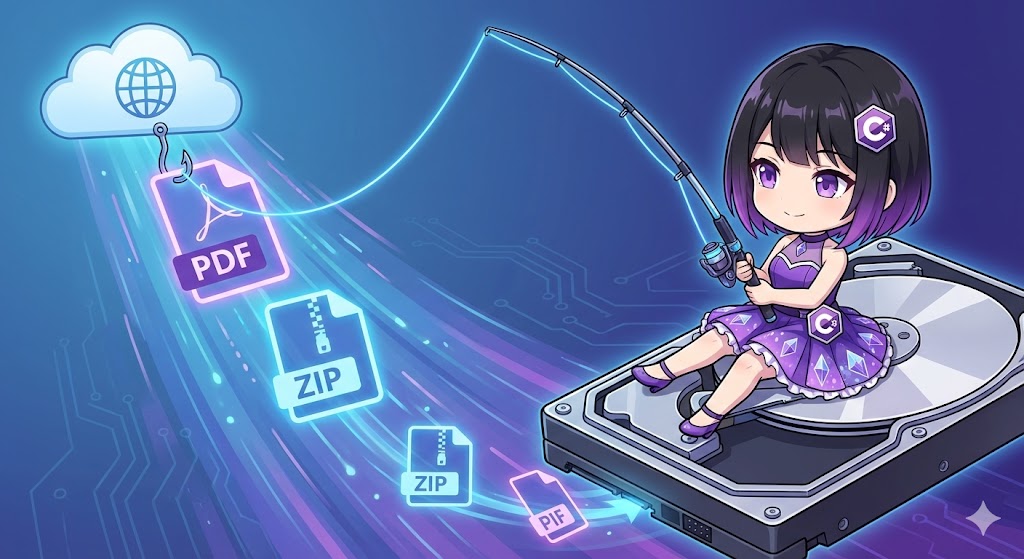
This implementation uses HttpClient to download binary files such as images, PDFs, and ZIP files and save them to local storage. Instead of loading the entire dataset into memory using GetByteArrayAsync, we use GetStreamAsync and Stream.CopyToAsync to process the data as a stream. This approach allows for the efficient saving of massive files (even several GBs) without triggering Out of Memory (OOM) exceptions.
Specifications (Input/Output)
- Input: Source URL and the destination file path.
- Output: A file generated at the specified path.
- Prerequisites: Uses standard .NET libraries (
System.Net.Http,System.IO). Requires an active internet connection.
Basic Usage
Connect the response stream (the data flow from the web) to the file writing stream (the pipe to the disk).
// Create a file stream
using var fileStream = File.Create("output.zip");

// Retrieve the stream from the web
using var httpStream = await httpClient.GetStreamAsync(url);

// Pipe the data from the source to the destination (copy)
await httpStream.CopyToAsync(fileStream);
Full Code Example
The following console application demonstrates a scenario where a product manual PDF (ranging from several MB to several GB) is downloaded to a local folder. This example uses C# 8.0 using declarations to keep the nesting shallow.
using System;
using System.IO;
using System.Net.Http;
using System.Threading.Tasks;

class Program
{
    // Reuse HttpClient instance
    private static readonly HttpClient _httpClient = new HttpClient();

    static async Task Main()
    {
        // Target URL for download (placeholder PDF)
        string fileUrl = "https://example.com/downloads/products/manual_v2.pdf";

        // Destination path (manual_v2.pdf in the current directory)
        string destinationPath = Path.Combine(Directory.GetCurrentDirectory(), "manual_v2.pdf");

        Console.WriteLine($"Starting download: {fileUrl}");

        try
        {
            await DownloadFileAsync(fileUrl, destinationPath);
            Console.WriteLine("Download completed successfully.");
            Console.WriteLine($"Saved to: {destinationPath}");
        }
        catch (Exception ex)
        {
            Console.WriteLine($"An error occurred: {ex.Message}");

            // Clean up the incomplete file if the download fails
            if (File.Exists(destinationPath))
            {
                File.Delete(destinationPath);
            }
        }
    }

    /// <summary>
    /// Downloads and saves a file using streams to minimize memory usage.
    /// </summary>
    static async Task DownloadFileAsync(string url, string outputPath)
    {
        // 1. Retrieve the HTTP response stream (begins receiving the body after headers)
        // using ensures the stream is disposed after completion
        using var responseStream = await _httpClient.GetStreamAsync(url);

        // 2. Create a file stream for writing
        // FileMode.Create: Overwrites if the file exists, creates if it doesn't
        using var fileStream = new FileStream(outputPath, FileMode.Create, FileAccess.Write, FileShare.None);

        // 3. Transfer data from the network stream to the file stream
        // Use the asynchronous CopyToAsync to avoid blocking the thread
        await responseStream.CopyToAsync(fileStream);
    }
}
Customization Points
- Timeout Extension: If downloading massive files that exceed the default 100-second timeout, set
_httpClient.Timeoutto a larger value or useTimeout.InfiniteTimeSpan. - Buffer Size Adjustment: You can specify a buffer size in the
CopyToAsyncoverload, though the default (approx. 80 KB) is typically sufficient for high performance. - Cancellation Support: To allow users to interrupt the download, pass a
CancellationTokento theCopyToAsync(stream, cancellationToken)method.
Important Notes
- Avoid Synchronous Methods: Using synchronous
CopyToblocks the main thread while waiting for network data, which can freeze GUI applications. Always useCopyToAsync. - Incomplete Files: If an exception occurs during download, a partially written (corrupted) file remains on the disk. It is safer to implement cleanup logic in the
catchblock to delete these files. - Disk Capacity: While stream processing saves memory, it still requires disk space. Check the available space beforehand or handle
IOExceptionfor “Disk Full” scenarios.
Advanced Application
Displaying Progress (Progress Bar)
The standard GetStreamAsync does not provide progress notifications. To track progress, use GetAsync with HttpCompletionOption.ResponseHeadersRead to retrieve the Content-Length (total size) and calculate the percentage manually.
// Read only headers first
using var response = await _httpClient.GetAsync(url, HttpCompletionOption.ResponseHeadersRead);
var totalBytes = response.Content.Headers.ContentLength ?? -1L;

using var stream = await response.Content.ReadAsStreamAsync();
using var fileStream = new FileStream(path, FileMode.Create);

// Prepare a buffer and loop through reading/writing to track progress
byte[] buffer = new byte[8192];
int bytesRead;
long totalRead = 0;

while ((bytesRead = await stream.ReadAsync(buffer, 0, buffer.Length)) > 0)
{
    await fileStream.WriteAsync(buffer, 0, bytesRead);
    totalRead += bytesRead;

    if (totalBytes > 0)
    {
        Console.Write($"\rProgress: {(double)totalRead / totalBytes * 100:F1}%");
    }
}
Conclusion
Avoid loading entire datasets into memory arrays (byte[]) except for very small files.
Implementing cleanup logic for failed downloads improves system reliability.
The combination of GetStreamAsync and CopyToAsync is the standard approach for file downloads.