Overview
This article explains the basic steps for inserting new rows (records) into a database table using Entity Framework Core (EF Core). In addition to adding a single entity, we will cover how to register data for multiple tables with relationships using object references or foreign key IDs.
Specifications
- Input: An instance of a newly created entity class.
- Process: Add the instance to the tracking context using the
DbSet<T>.Add()method, and commit the changes to the database usingSaveChangesAsync(). - Output: A record is created in the database, and the automatically generated primary key (ID) is reflected in the entity instance.
Basic Usage
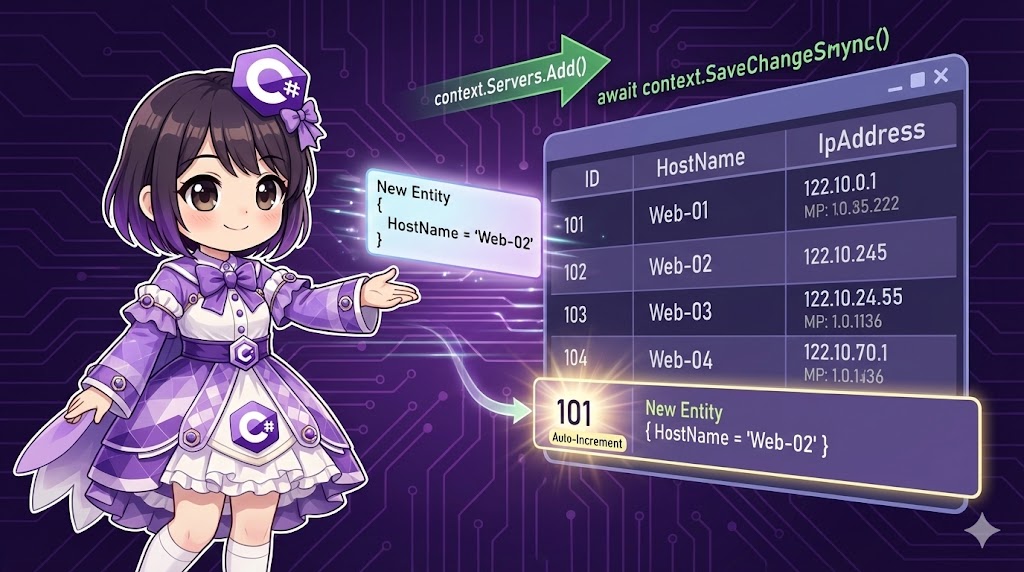
You can issue an INSERT statement by calling the Add method on the DbSet property of your DbContext and then executing SaveChangesAsync.
// 1. Create an instance
var newServer = new Server { HostName = "Web-01" };

// 2. Add to context (not yet reflected in the DB)
context.Servers.Add(newServer);

// 3. Save (The INSERT statement is executed here)
await context.SaveChangesAsync();
Full Code Example
The following code is a console application for a server monitoring system. It demonstrates the process of creating a “Server” master record and then adding “Access Logs” associated with that server.
Note: Requires the Microsoft.EntityFrameworkCore.InMemory package. dotnet add package Microsoft.EntityFrameworkCore.InMemory
using System;
using System.Collections.Generic;
using System.Threading.Tasks;
using Microsoft.EntityFrameworkCore;

namespace InsertDataSample
{
    // 1. Entity class definitions
    public class Server
    {
        public int ServerId { get; set; }
        public string HostName { get; set; } = string.Empty;
        public string IpAddress { get; set; } = string.Empty;

        // Relation: One server has multiple logs
        public ICollection<AccessLog> AccessLogs { get; set; } = new List<AccessLog>();
    }

    public class AccessLog
    {
        public int LogId { get; set; }
        public string RequestPath { get; set; } = string.Empty;
        public DateTime AccessedAt { get; set; }

        // Foreign Key
        public int ServerId { get; set; }
        // Navigation Property
        public Server Server { get; set; }
    }

    // 2. DbContext definition
    public class MonitoringContext : DbContext
    {
        public DbSet<Server> Servers { get; set; }
        public DbSet<AccessLog> AccessLogs { get; set; }

        protected override void OnConfiguring(DbContextOptionsBuilder optionsBuilder)
        {
            // Use In-Memory database for testing
            optionsBuilder.UseInMemoryDatabase("MonitoringDb");
        }
    }

    class Program
    {
        static async Task Main(string[] args)
        {
            using (var context = new MonitoringContext())
            {
                // --- Creating Parent Data ---
                var server1 = new Server
                {
                    HostName = "App-Server-01",
                    IpAddress = "192.168.1.10"
                };

                var server2 = new Server
                {
                    HostName = "DB-Server-01",
                    IpAddress = "192.168.1.20"
                };

                // Add to DbSet
                context.Servers.Add(server1);
                context.Servers.Add(server2);

                // Save to database
                // ID remains 0 until SaveChanges is called
                await context.SaveChangesAsync();

                Console.WriteLine($"Server1 Saved. ID: {server1.ServerId}");
                Console.WriteLine($"Server2 Saved. ID: {server2.ServerId}");


                // --- Creating Child Data (Adding Related Data) ---

                // Pattern A: Using an object reference
                // Directly assign the parent entity (server1)
                var log1 = new AccessLog
                {
                    Server = server1,
                    RequestPath = "/api/v1/health",
                    AccessedAt = DateTime.Now
                };
                context.AccessLogs.Add(log1);

                // Pattern B: Using a Foreign Key ID
                // Use this when the parent entity ID (server2.ServerId) is known
                var log2 = new AccessLog
                {
                    ServerId = server2.ServerId,
                    RequestPath = "/query/execute",
                    AccessedAt = DateTime.Now
                };
                context.AccessLogs.Add(log2);

                // Save all changes
                await context.SaveChangesAsync();

                Console.WriteLine("Log data saved.");
                Console.WriteLine($"Log1 ID: {log1.LogId} (Server: {log1.Server.HostName})");
                Console.WriteLine($"Log2 ID: {log2.LogId} (ServerId: {log2.ServerId})");
            }
        }
    }
}
Execution Results Example
Server1 Saved. ID: 1
Server2 Saved. ID: 2
Log data saved.
Log1 ID: 1 (Server: App-Server-01)
Log2 ID: 2 (ServerId: 2)
Customization Points
- Batch Addition with AddRange: When adding multiple entities at once, using
AddRangeis cleaner than callingAddrepeatedly.C#context.Servers.AddRange(server1, server2); // Or pass a list // context.Servers.AddRange(new List<Server> { s1, s2 }); - Synchronous Methods: If your application (like a console app or batch process) does not require asynchronous operations, you can use the synchronous
SaveChanges()method. In web applications,SaveChangesAsync()is recommended for better scalability.
Important Notes
- ID Generation Timing: Primary keys that are automatically generated (like
ServerId) remain “0” when you callAdd. The value is populated into the entity property only afterSaveChangesAsync()completes and receives the value back from the database. - Transactions:
SaveChangesAsync()treats all pending changes (Add, Update, Delete) as a single transaction. If an error occurs during the process, all changes are rolled back, maintaining data integrity. - Instance Reuse: Be careful when reusing an entity instance that was saved in one context in another context instance, as you will need to manage its tracking state. Generally, it is better to fetch the data again or create a new instance for a new context.
Variations
Adding via Navigation Properties
If you add a child entity directly to the collection of a parent entity, EF Core recognizes the relationship and automatically performs the INSERT when saving.
var server = new Server { HostName = "File-Server" };
// Add directly to the collection
server.AccessLogs.Add(new AccessLog
{
    RequestPath = "/files/download",
    AccessedAt = DateTime.Now
});

context.Servers.Add(server);
// Both parent (Server) and child (AccessLog) are saved together
await context.SaveChangesAsync();
Summary
To add related data (child records), you can either set the parent object reference or set the parent ID directly.
Data addition is performed using a combination of DbSet.Add() and SaveChangesAsync().
SaveChangesAsync acts as a transaction, and upon success, the automatically generated ID is reflected in the object.