For console applications in .NET Core and later (including .NET 5, 6, and 8), the standard method for professional logging is combining Microsoft.Extensions.Logging and Microsoft.Extensions.Hosting. Unlike System.Console.WriteLine, this approach allows for color-coding based on log levels (Information, Warning, Error, etc.) and makes it easy to switch output destinations like files or databases.
In this article, we will introduce a basic implementation using the Generic Host pattern. We will receive ILogger from the Dependency Injection (DI) container and output logs at various levels.
Table of Contents
- Installing Required Packages
- Implementation Code
- Execution Result
- Explanation and Key Points
1. Installing Required Packages
After creating your project, install the following NuGet packages:
dotnet add package Microsoft.Extensions.Hosting
dotnet add package Microsoft.Extensions.Logging
dotnet add package Microsoft.Extensions.Logging.Console
2. Implementation Code
Program.cs (Host Construction and Settings)
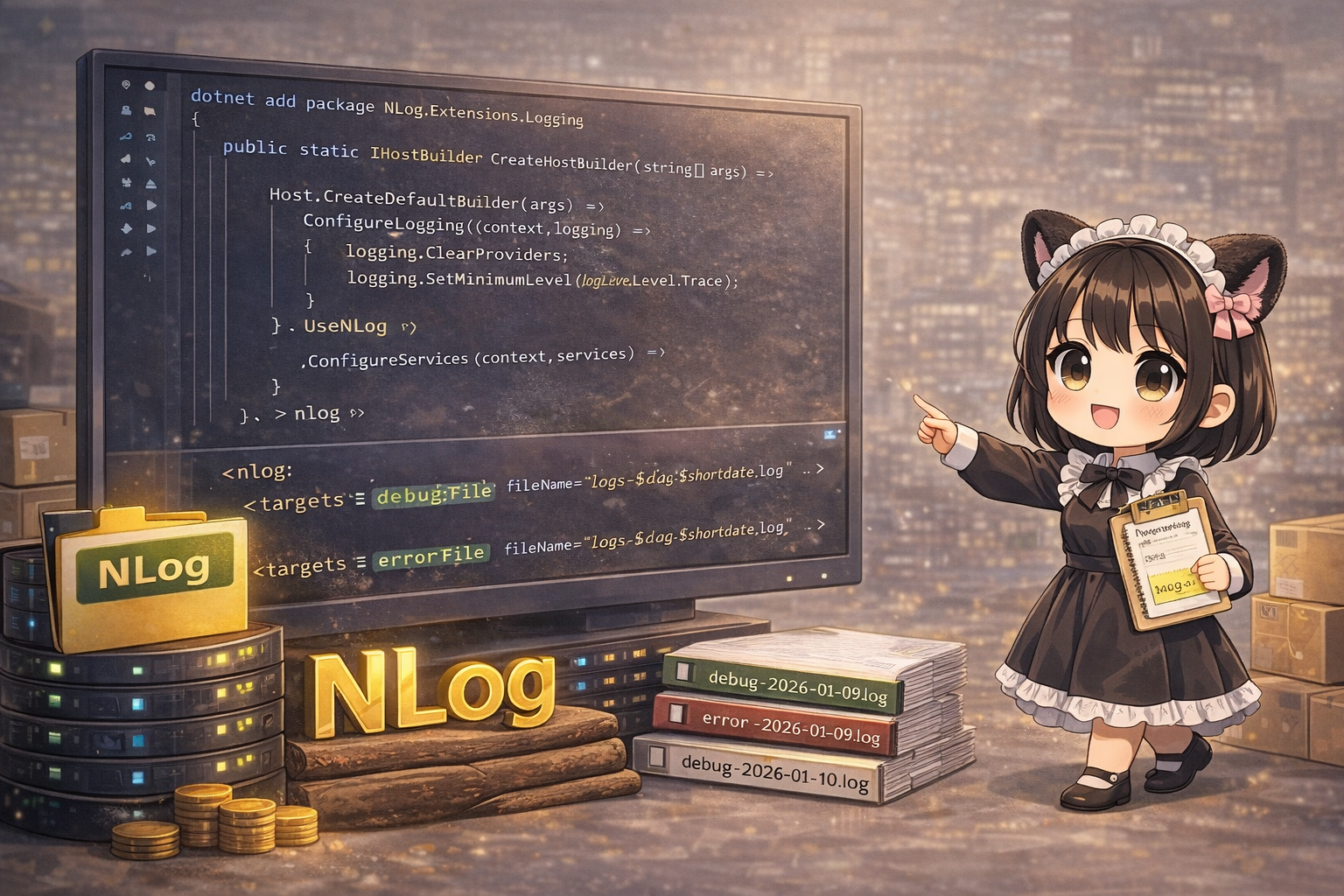
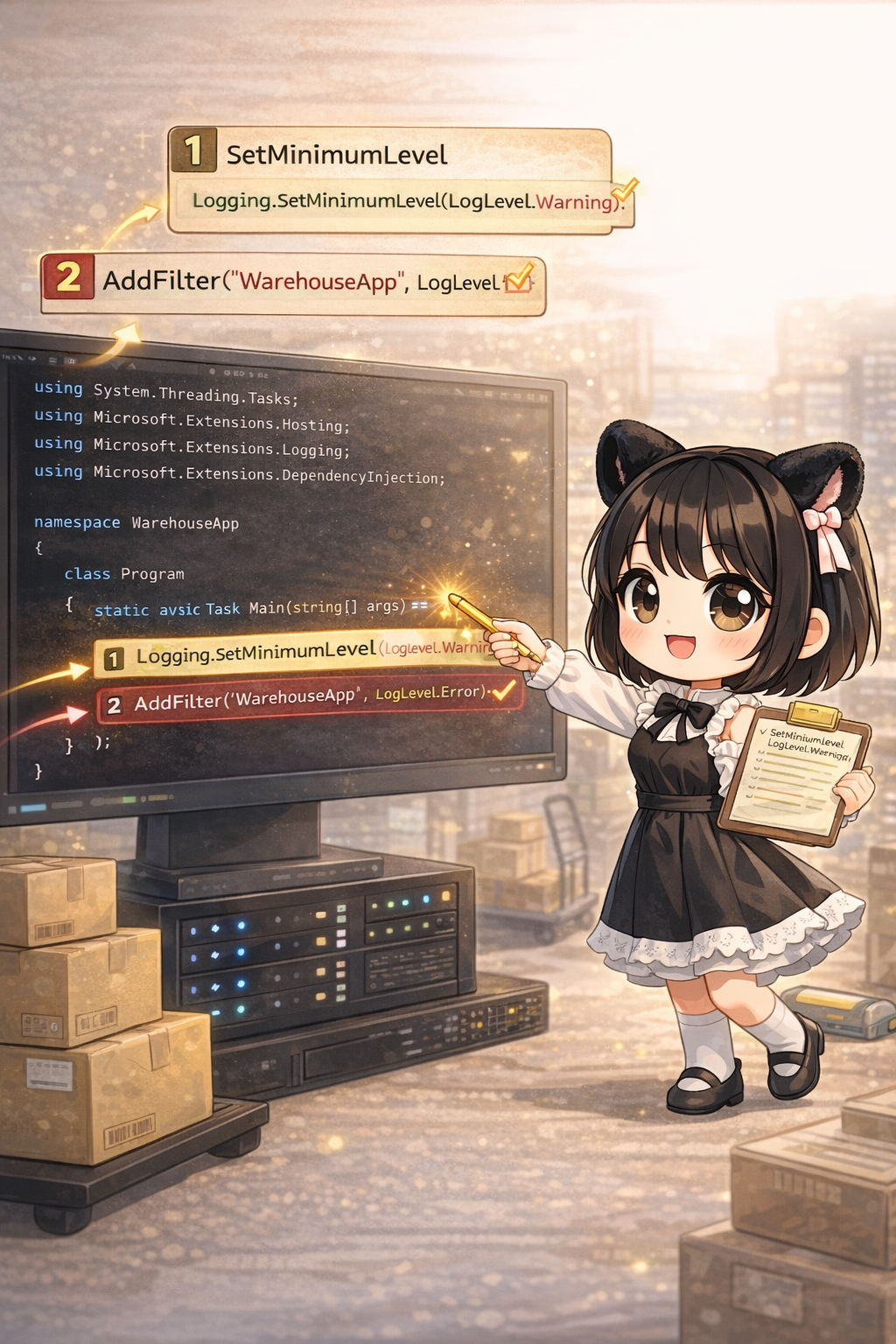
Use Host.CreateDefaultBuilder to configure logging and register the worker class (MyWorker). Here, the minimum log level is set to Trace so that LogTrace and LogDebug messages are also displayed.
using System.Threading.Tasks;
using Microsoft.Extensions.Hosting;
using Microsoft.Extensions.DependencyInjection;
using Microsoft.Extensions.Logging;

namespace Gihyo
{
    class Program
    {
        static async Task Main(string[] args)
        {
            // Build and run the host
            await CreateHostBuilder(args).Build().RunAsync();
        }

        private static IHostBuilder CreateHostBuilder(string[] args) =>
            Host.CreateDefaultBuilder(args)
                .ConfigureLogging((context, logging) =>
                {
                    // Clear default providers and add only Console
                    logging.ClearProviders();
                    logging.AddConsole();

                    // Set to display all levels of logs
                    logging.SetMinimumLevel(LogLevel.Trace);
                })
                .ConfigureServices((context, services) =>
                {
                    // Register MyWorker as a HostedService (runs automatically on startup)
                    services.AddHostedService<MyWorker>();
                });
    }
}
MyWorker.cs (Class for Logging)
By receiving ILogger<MyWorker> in the constructor, a logger specific to this class is injected. By inheriting from BackgroundService, ExecuteAsync is automatically called when the application starts.
using System.Threading;
using System.Threading.Tasks;
using Microsoft.Extensions.Hosting;
using Microsoft.Extensions.Logging;

namespace Gihyo
{
    // Inheriting BackgroundService runs ExecuteAsync on startup
    public class MyWorker : BackgroundService
    {
        private readonly ILogger<MyWorker> _logger;

        // Receive logger from DI container
        public MyWorker(ILogger<MyWorker> logger)
        {
            _logger = logger;
        }

        protected override Task ExecuteAsync(CancellationToken stoppingToken)
        {
            // Test log output for each level
            // The first argument is the message; you can pass arguments for the second and subsequent parameters
            _logger.LogTrace("This is a Trace level log.");
            _logger.LogDebug("This is a Debug level log.");
            _logger.LogInformation("This is an Information level log.");
            _logger.LogWarning("This is a Warning level log.");
            _logger.LogError("This is an Error level log.");
            _logger.LogCritical("This is a Critical level log.");

            return Task.CompletedTask;
        }
    }
}
3. Execution Result
The logs are color-coded by level in the console (colors may vary depending on your terminal environment).
trce: Gihyo.MyWorker[0]
      This is a Trace level log.
dbug: Gihyo.MyWorker[0]
      This is a Debug level log.
info: Gihyo.MyWorker[0]
      This is an Information level log.
warn: Gihyo.MyWorker[0]
      This is a Warning level log.
fail: Gihyo.MyWorker[0]
      This is an Error level log.
crit: Gihyo.MyWorker[0]
      This is a Critical level log.
Explanation and Key Points
- ILogger<T> Injection: By using
public MyWorker(ILogger<MyWorker> logger), a category name is automatically added to the logs showing which class they came from (e.g., theGihyo.MyWorkerpart in the output). - Log Level Settings: By default, only logs at the
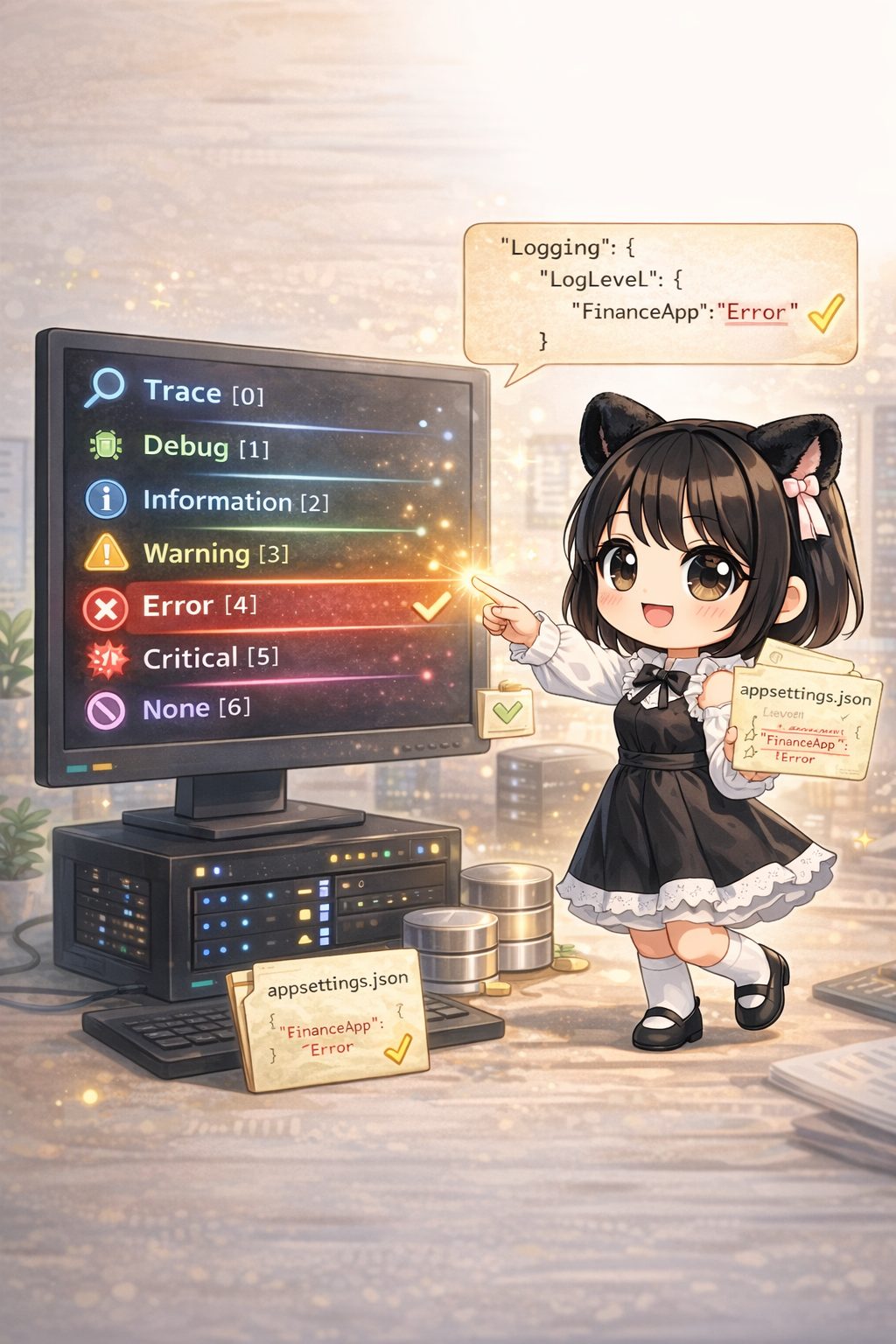
Informationlevel or higher are displayed. To seeTraceorDebuglogs during development, you must setlogging.SetMinimumLevel(LogLevel.Trace)or change the settings inappsettings.json. - Structured Logging: Using placeholders like
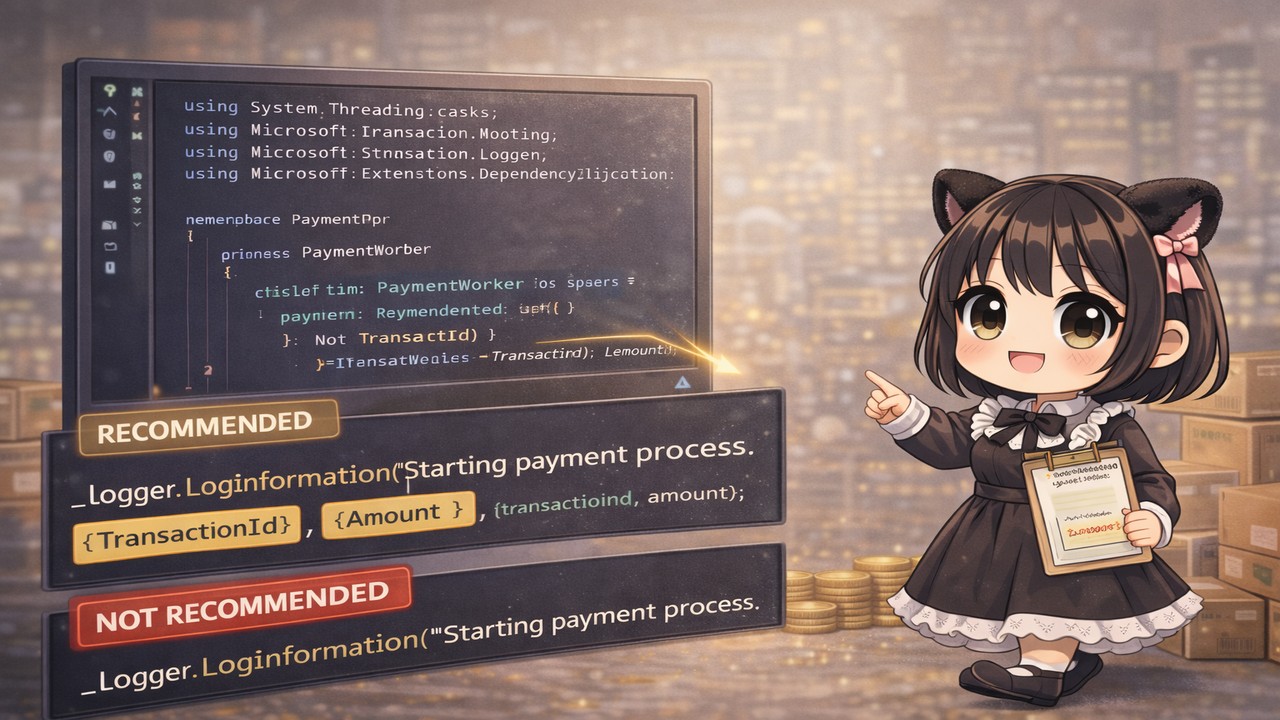
_logger.LogInformation("Processing id: {Id}", 123);records data in a structured format rather than just concatenating strings. This makes it easier to search and analyze logs later.