Overview
To measure the execution speed of a program or the time taken for a specific process, we use the System.Diagnostics.Stopwatch class. This is far more accurate than calculating differences with DateTime. It also allows you to easily accumulate time by using Stop and Start repeatedly.
Specifications (Input/Output)
- Input: Triggers for starting, pausing, and resuming the measurement.
- Output: Elapsed time (
TimeSpan) and the current state (running or not) (bool). - Features:
- High-precision measurement using the OS high-resolution performance counter.
- Allows cumulative measurement by stopping and restarting the same instance.
Basic Usage
Create an instance, start it, and refer to the Elapsed property when you stop it.
using System.Diagnostics;

// Start measurement
var sw = Stopwatch.StartNew();

// ... Perform some process ...

// Stop measurement
sw.Stop();

// Display results
Console.WriteLine($"Elapsed Time: {sw.Elapsed}");
Full Code
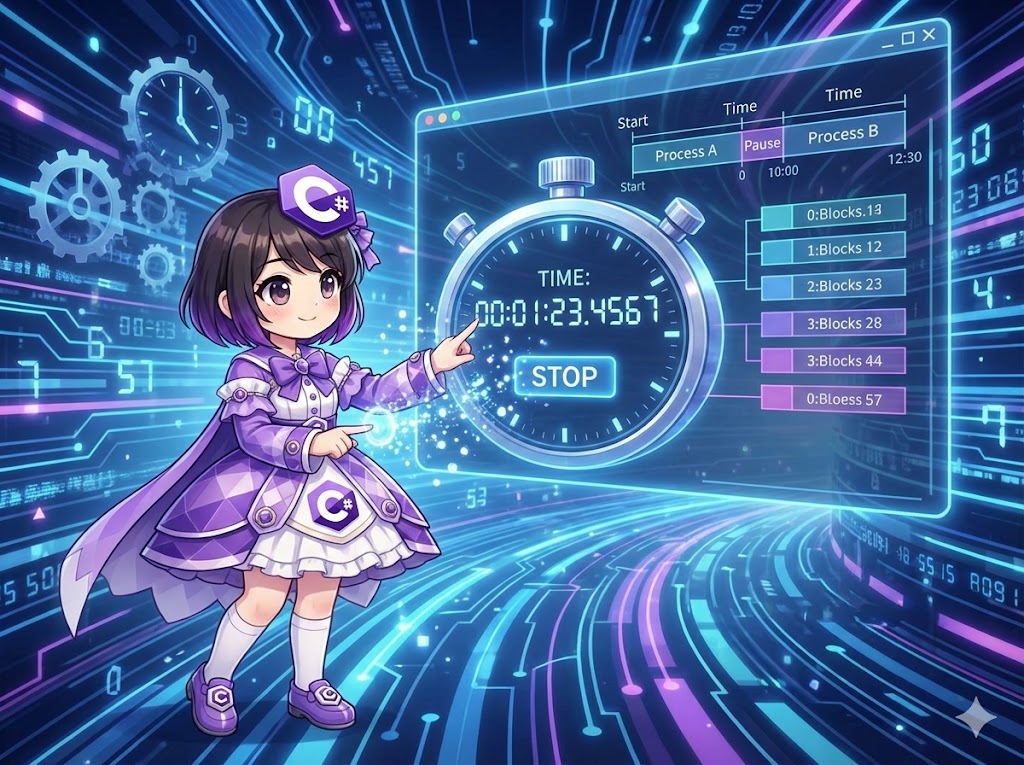
The following is a console application that verifies that the Stopwatch accumulates only the time during which it is “running” by pausing and resuming after a delay.
using System;
using System.Diagnostics;
using System.Threading;

class Program
{
    static void Main()
    {
        Console.WriteLine("--- Starting Measurement ---");

        // 1. Create instance and start measurement simultaneously
        Stopwatch sw = Stopwatch.StartNew();

        Console.WriteLine($"[State] IsRunning: {sw.IsRunning}");

        // Process A (Measuring target: 1 second)
        Console.WriteLine("Executing Process A (1000ms)...");
        Thread.Sleep(1000);

        // 2. Pause
        sw.Stop();
        Console.WriteLine($"[State] IsRunning: {sw.IsRunning}");

        // Display elapsed time at this point
        // The "G" format specifier outputs a general time format (d.hh:mm:ss.fffffff)
        Console.WriteLine($"Intermediate Time: {sw.Elapsed:G}");

        Console.WriteLine("\n--- Time outside of measurement (Waiting: 2000ms) ---\n");
        Thread.Sleep(2000); // This time is NOT included in the measurement

        // 3. Resume measurement (The Start method accumulates time)
        Console.WriteLine("--- Resuming Measurement ---");
        sw.Start();
        Console.WriteLine($"[State] IsRunning: {sw.IsRunning}");

        // Process B (Measuring target: 1.5 seconds)
        Console.WriteLine("Executing Process B (1500ms)...");
        Thread.Sleep(1500);

        // 4. Final stop
        sw.Stop();
        Console.WriteLine($"[State] IsRunning: {sw.IsRunning}");

        // Retrieve final elapsed time
        TimeSpan totalResult = sw.Elapsed;

        Console.WriteLine($"\nFinal Result: {totalResult:G}");
        Console.WriteLine($"In Milliseconds: {sw.ElapsedMilliseconds} ms");
    }
}
Output Example
--- Starting Measurement ---
[State] IsRunning: True
Executing Process A (1000ms)...
[State] IsRunning: False
Intermediate Time: 0:00:00:01.0123456

--- Time outside of measurement (Waiting: 2000ms) ---

--- Resuming Measurement ---
[State] IsRunning: True
Executing Process B (1500ms)...
[State] IsRunning: False

Final Result: 0:00:00:02.5234567
In Milliseconds: 2523 ms
Note: Millisecond errors may vary depending on the execution environment.
Customization Points
- Reset and Reuse: Calling
sw.Reset()clears the elapsed time and stops the stopwatch. Use this when you want to reuse the same instance for a different measurement.sw.Restart()performs a zero-reset and starts the timer immediately. - Change Display Format: You can use custom
TimeSpanformat specifiers likesw.Elapsed.ToString(@"hh\:mm\:ss")to display only the necessary units. - Simplified Properties: If you only need to know how many milliseconds have passed, use the
sw.ElapsedMillisecondsproperty (long) directly without going throughTimeSpan.
Points of Caution
- Difference from DateTime: Calculating with
DateTime.Nowcan be affected by system clock changes and has lower precision. Always useStopwatchfor measuring processing time. - Checking IsRunning: Calling
Start()while already running orStop()while already stopped does not throw an exception. However, it is good practice to check theIsRunningproperty if you need to track the logic state. - Micro Overhead: Operating the
Stopwatchclass itself has a tiny cost. Keep this in mind for loops requiring strict nanosecond-level measurements.
Application
Measuring Logic Blocks with a Helper Class
The following is a helper class that utilizes IDisposable to automatically measure and output time the moment a using block is exited.
using System;
using System.Diagnostics;

public class MeasureScope : IDisposable
{
    private readonly Stopwatch _sw;
    private readonly string _name;

    public MeasureScope(string name)
    {
        _name = name;
        _sw = Stopwatch.StartNew();
    }

    public void Dispose()
    {
        _sw.Stop();
        Console.WriteLine($"[{_name}] Completed: {_sw.ElapsedMilliseconds} ms");
    }
}

// Usage Example
// using (new MeasureScope("Heavy Database Process"))
// {
//     // Logic you want to measure
// }
Summary
The Stopwatch class is a fundamental tool for performance tuning and logging. Its greatest feature is the ability to repeat Start and Stop to accumulate only the time spent on specific tasks. By using this class instead of simple DateTime subtraction, you can achieve high-precision benchmarking that remains unaffected by system time adjustments.