目次
概要
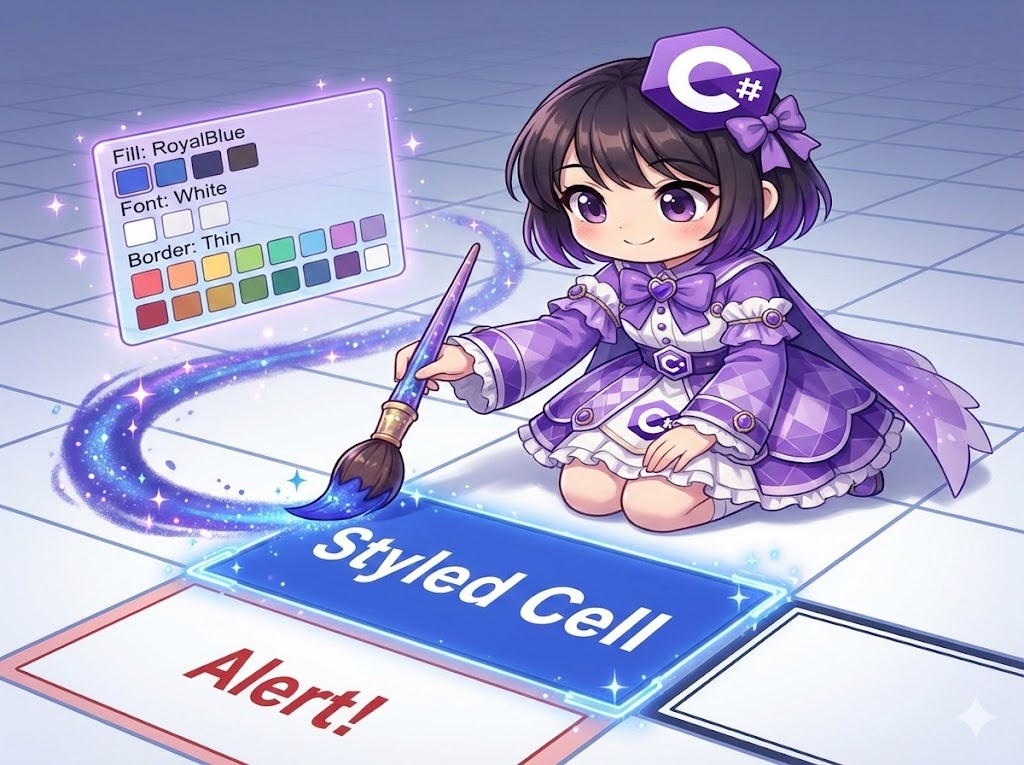
NPOIを使用して、セルの背景色、罫線、フォントカラーなどの書式設定(スタイル)を適用する実装です。
Excelのスタイル設定は「スタイルオブジェクトを作成」し、それを「セルに割り当てる」という手順で行います。
仕様(入出力)
- 入力: 保存先パス、設定したい値、スタイル情報
- 出力: 装飾されたExcelファイル
- ライブラリ: NPOI (NuGetパッケージ)
実装メソッド一覧
| メソッド名 | 説明 |
CreateMyStyle | 背景色(青)や罫線などの定義済みスタイルオブジェクトを作成して返します。 |
SetValue | 指定した行・列に値を設定します。引数でスタイルオブジェクトを渡すことで書式を適用できます。 |
基本の使い方
var xls = MyExcelBook.Create("style_test.xlsx");
xls.CreateSheet("DesignSheet");

// 1. スタイルを作成(使い回し可能)
var blueStyle = xls.CreateMyStyle();

// 2. 通常のセル書き込み
xls.SetValue(1, 1, "Normal Cell");

// 3. スタイルを適用したセル書き込み
xls.SetValue(2, 2, "Styled Cell", blueStyle);

xls.Save();
コード全文
using System;
using System.IO;
using NPOI.SS.UserModel;
using NPOI.XSSF.UserModel;

class Program
{
    static void Main()
    {
        try
        {
            var xls = MyExcelBook.Create("example_style.xlsx");
            xls.CreateSheet("Report");

            // スタイル定義(青背景・白文字・罫線)
            var headerStyle = xls.CreateMyStyle();

            // スタイルなしで書き込み
            xls.SetValue(1, 1, "Normal Text");

            // スタイルありで書き込み
            xls.SetValue(3, 1, "Header Item 1", headerStyle);
            xls.SetValue(3, 2, "Header Item 2", headerStyle);

            xls.Save();
            Console.WriteLine("File created successfully.");
        }
        catch (Exception ex)
        {
            Console.WriteLine($"Error: {ex.Message}");
        }
    }
}

public sealed class MyExcelBook
{
    private XSSFWorkbook _workbook;
    private ISheet _sheet;
    private string _filePath;

    private MyExcelBook()
    {
        _workbook = new XSSFWorkbook();
    }

    public static MyExcelBook Create(string filePath)
    {
        return new MyExcelBook
        {
            _filePath = filePath,
            _workbook = new XSSFWorkbook()
        };
    }

    public void CreateSheet(string name)
    {
        _sheet = _workbook.CreateSheet(name);
    }

    // カスタムスタイルの作成
    public ICellStyle CreateMyStyle()
    {
        var style = _workbook.CreateCellStyle();

        // 背景色の設定(ロイヤルブルー)
        style.FillForegroundColor = IndexedColors.RoyalBlue.Index;
        style.FillPattern = FillPattern.SolidForeground;

        // 罫線の設定(細線)
        style.BorderTop = BorderStyle.Thin;
        style.BorderBottom = BorderStyle.Thin;
        style.BorderLeft = BorderStyle.Thin;
        style.BorderRight = BorderStyle.Thin;

        // フォントの設定(白文字・太字)
        var font = _workbook.CreateFont();
        font.Color = IndexedColors.White.Index;
        font.IsBold = true;
        style.SetFont(font);

        return style;
    }

    // 値とスタイルを設定するメソッド
    public void SetValue(int rowIndex, int colIndex, string value, ICellStyle style = null)
    {
        // 行を取得、なければ作成
        var row = _sheet.GetRow(rowIndex) ?? _sheet.CreateRow(rowIndex);

        // セルを取得、なければ作成
        var cell = row.GetCell(colIndex) ?? row.CreateCell(colIndex);

        cell.SetCellValue(value);

        // スタイルが指定されていれば適用
        if (style != null)
        {
            cell.CellStyle = style;
        }
    }

    public void Save()
    {
        using var stream = new FileStream(_filePath, FileMode.Create, FileAccess.Write);
        _workbook.Write(stream);
    }
}
カスタムポイント
- フォントの変更:_workbook.CreateFont() でフォントオブジェクトを作成し、font.FontHeightInPoints = 14;(サイズ)や font.FontName = “MS ゴシック”;(フォント名)などを設定してから、style.SetFont(font) でスタイルに紐付けます。
- 配置(アライメント):style.Alignment = HorizontalAlignment.Center;(左右中央)、style.VerticalAlignment = VerticalAlignment.Center;(上下中央)で文字位置を調整できます。
- 表示形式:日付や通貨を表示したい場合は、style.DataFormat プロパティを使用します。例: style.DataFormat = _workbook.CreateDataFormat().GetFormat(“yyyy/mm/dd”);
注意点
- スタイルの作成数上限:Excelファイルにはスタイルの定義数に上限(約64,000個ですが、実用的にはもっと少ない方が良い)があります。ループの中で毎回 CreateCellStyle() を呼ぶとすぐに上限に達し、ファイルが壊れます。スタイルはループの外で一度だけ作成し、それを使い回してください。
- 色の指定方法:IndexedColors を使うのが基本ですが、任意の色(RGB指定)を使いたい場合は XSSFColor クラスを使用する必要があります。
- 上書き時の注意:既にスタイルが設定されているセルに対して新しいスタイルをセットすると、以前のスタイル(罫線など)はすべて上書きされて消えます。既存スタイルを維持したまま変更したい場合は、CloneStyleFrom メソッドでコピーしてから修正する必要があります。
応用
条件付きで赤字にするスタイル
値がマイナスの時などに使う「赤文字」スタイルの例です。
public ICellStyle CreateAlertStyle()
{
    var style = _workbook.CreateCellStyle();
    var font = _workbook.CreateFont();
    font.Color = IndexedColors.Red.Index; // 赤文字
    style.SetFont(font);
    return style;
}
まとめ
NPOIでスタイルを扱う際の鉄則は「定義は一度だけ、適用は何度でも」です。CreateMyStyle のようなファクトリメソッドを用意してスタイルオブジェクトを生成・保持し、SetValue のような書き込みメソッドに引数として渡す設計にすることで、コードの重複を防ぎつつ安全に装飾を行えます。