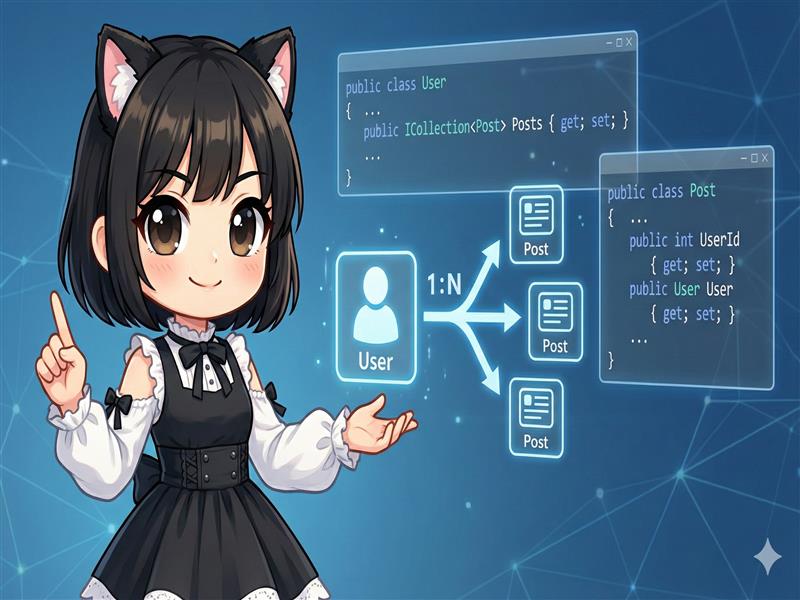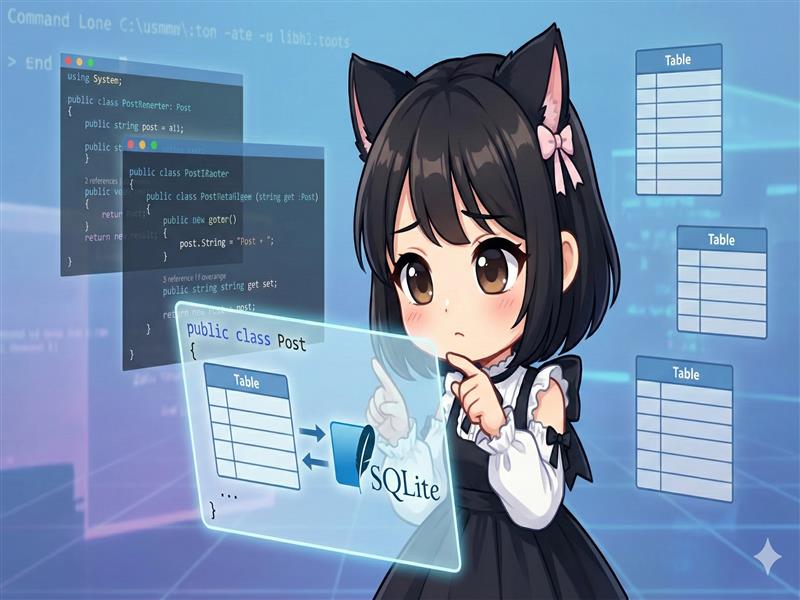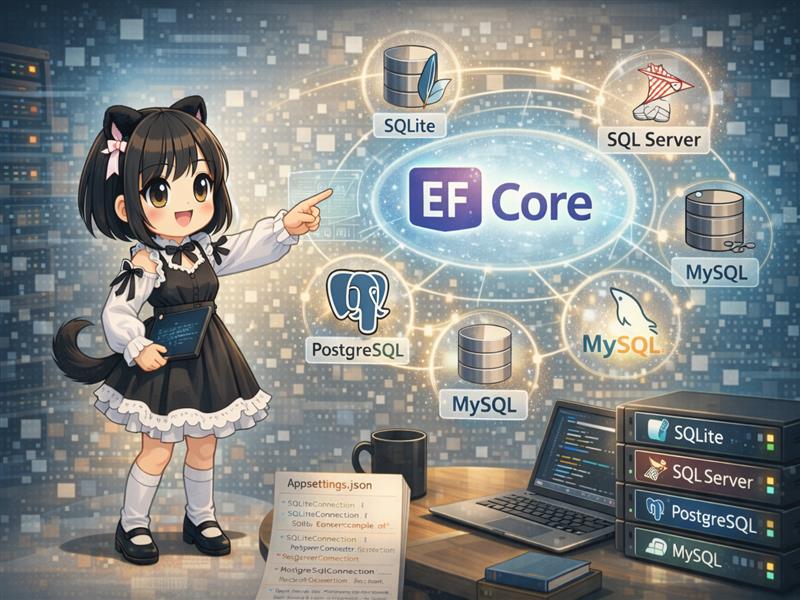
Entity Framework Core (EF Core) is an Object-Relational Mapper (ORM) that makes database operations easier in .NET applications. This guide covers the steps to set up EF Core for four major databases: SQLite, SQL Server, PostgreSQL, and MySQL. We will go through installing packages, configuring connection strings in appsettings.json, and setting up Dependency Injection (DI) in Program.cs.
1. Preparation (Installing dotnet tools)
To manage database migrations (such as creating tables) with EF Core, you need the CLI tool. Use the following commands to install or update it globally.
# Install the tool
dotnet tool install --global dotnet-ef

# Update the tool to the latest version if already installed
dotnet tool update --global dotnet-ef
2. Installing NuGet Packages
Add the necessary libraries to your project. You must install the common Design package and a specific provider for your database.
Common (Required)
dotnet add package Microsoft.EntityFrameworkCore.Design
Database Specific Providers
For SQLite
dotnet add package Microsoft.EntityFrameworkCore.Sqlite
For SQL Server
dotnet add package Microsoft.EntityFrameworkCore.SqlServer
For PostgreSQL
dotnet add package Npgsql.EntityFrameworkCore.PostgreSQL
For MySQL (MariaDB) Note: The Pomelo library is commonly recommended over the official MySQL library.
dotnet add package Pomelo.EntityFrameworkCore.MySql
3. Defining the Model and DbContext
In this example, we define a Book entity and an ExampleDbContext to manage it. This code is the same regardless of which database you use.
using Microsoft.EntityFrameworkCore;

namespace MyApp.Models
{
    // 1. Entity (Table Definition)
    public class Book
    {
        public int Id { get; set; }
        public string Title { get; set; }
        public string Author { get; set; }
    }

    // 2. DbContext (Gateway for DB Operations)
    public class ExampleDbContext : DbContext
    {
        public ExampleDbContext(DbContextOptions<ExampleDbContext> options)
            : base(options)
        {
        }

        // Defined as a table
        public DbSet<Book> Books { get; set; }
    }
}
4. Defining Connection Strings (appsettings.json)
Add your connection strings to appsettings.json. Refer to the examples below for each database.
{
  "ConnectionStrings": {
    "SqliteConnection": "Data Source=Example.db",

    "SqlServerConnection": "Server=(localdb)\\mssqllocaldb;Database=ExampleDb;Trusted_Connection=True;MultipleActiveResultSets=true",

    "PostgreSqlConnection": "Host=localhost;Database=ExampleDb;Username=postgres;Password=password",

    "MySqlConnection": "Server=localhost;Database=ExampleDb;User=root;Password=password"
  }
}
5. Dependency Injection (Program.cs)
Register your DbContext in the DI container when the application starts. This is where you specify the database type.
Using SQLite
using Microsoft.EntityFrameworkCore;
using MyApp.Models;

var builder = WebApplication.CreateBuilder(args);

// SQLite Configuration
builder.Services.AddDbContext<ExampleDbContext>(options =>
    options.UseSqlite(
        builder.Configuration.GetConnectionString("SqliteConnection")));
Using SQL Server
// SQL Server Configuration
builder.Services.AddDbContext<ExampleDbContext>(options =>
    options.UseSqlServer(
        builder.Configuration.GetConnectionString("SqlServerConnection")));
Using PostgreSQL
// PostgreSQL Configuration
builder.Services.AddDbContext<ExampleDbContext>(options =>
    options.UseNpgsql(
        builder.Configuration.GetConnectionString("PostgreSqlConnection")));
Using MySQL (Pomelo)
For MySQL, you need to include ServerVersion.AutoDetect to automatically detect the server version.
// MySQL (Pomelo) Configuration
var connectionString = builder.Configuration.GetConnectionString("MySqlConnection");

builder.Services.AddDbContext<ExampleDbContext>(options =>
    options.UseMySql(
        connectionString,
        ServerVersion.AutoDetect(connectionString)));
6. Creating the Database (Migrations)
After the setup is complete, run the following commands to create the database and tables.
# 1. Create a migration file (you can name it anything, e.g., InitialCreate)
dotnet ef migrations add InitialCreate

# 2. Apply the migration to the database
dotnet ef database update
Summary
The initial setup for Entity Framework Core is now complete. One of the strengths of EF Core is that the basic DbContext definition remains the same for any database. You only need to switch the connection settings in Program.cs and install the correct provider package. Choose the database that best fits your project requirements.