Overview
The apt-get command is used in Debian-based distributions (such as Ubuntu and Debian) to install, update, and remove packages. While the apt command is now recommended for interactive use, apt-get remains the standard for shell scripts and automation tools like Ansible because its output format is stable and predictable.
Specifications (Arguments and Options)
Syntax
apt-get [options] [command] [package_name]
Main Commands
| Command | Description |
| update | Updates the package list (index) to the latest state. |
| upgrade | Updates all installed packages (does not remove packages). |
| dist-upgrade | Performs an upgrade and handles changing dependencies by adding or removing packages. |
| install | Installs or updates the specified package. |
| remove | Removes the specified package but keeps configuration files. |
| purge | Completely removes the package and its configuration files. |
| source | Downloads the source code of the package. |
| build-dep | Installs the dependency packages required to build a specific package. |
| download | Downloads the .deb package file to the current directory. |
| check | Checks if there are any broken dependencies. |
| clean | Deletes the downloaded package archive files (cache). |
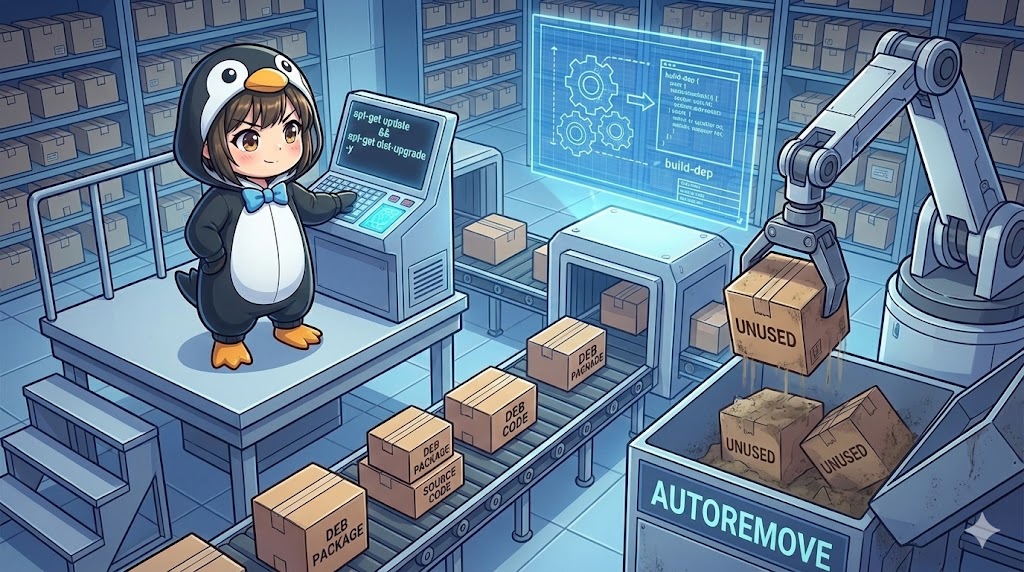
| autoremove | Automatically removes packages that were installed as dependencies but are no longer needed. |
| changelog | Downloads and displays the change log of a package. |
Main Options
| Option | Description |
| –no-install-recommends | Does not install “Recommended” packages; installs only the essential ones. |
| -d / –download-only | Downloads the package files only without installing or unpacking them. |
| -f / –fix-broken | Attempts to repair broken dependencies. |
| -q / –quiet | Suppresses log output (e.g., hides progress bars). |
| –reinstall | Reinstalls the specified package. |
| -s / –simulate | Shows a simulation of what would happen without actually making changes. |
| -t [release] | Operates on a specific release (e.g., stable, testing). |
| -y / –yes | Automatically answers “Yes” to all confirmation prompts. |
| –assume-no | Automatically answers “No” to all confirmation prompts. |
| -u / –show-upgraded | Displays a list of packages that will be upgraded. |
| -b / –compile | Used with the source command to compile the source after downloading. |
Basic Usage
This is the basic flow to update repository information and install the joke software sl (Steam Locomotive).
# 1. Update the package list (required)
sudo apt-get update

# 2. Install the package
sudo apt-get install sl
Example output:
Reading package lists... Done
Building dependency tree
Reading state information... Done
The following NEW packages will be installed:
  sl
0 upgraded, 1 newly installed, 0 to remove and 15 not upgraded.
Need to get 12.5 kB of archives.
After this operation, 48.1 kB of additional disk space will be used.
Get:1 http://jp.archive.ubuntu.com/ubuntu focal/universe amd64 sl amd64 5.02-1 [12.5 kB]
Fetched 12.5 kB in 0s (105 kB/s)
Selecting previously unselected package sl.
(Reading database ... 20543 files and directories currently installed.)
Preparing to unpack .../archives/sl_5.02-1_amd64.deb ...
Unpacking sl (5.02-1) ...
Setting up sl (5.02-1) ...
Practical Commands
Updating All System Packages
Upgrade all installed packages to their newest versions.
# Execute after updating the list
sudo apt-get upgrade
Downloading Packages Without Installing
Use this to save .deb files to the cache directory (/var/cache/apt/archives/) if you want to move files to another machine without an internet connection.
# Download the ruby package only
sudo apt-get install ruby -d

# Check the saved files
ls /var/cache/apt/archives/ruby*
Cleaning Up Unnecessary Packages
Delete dependency libraries that were automatically installed but are no longer needed because the parent package was removed. This is effective for saving disk space.
# Remove unnecessary dependency packages
sudo apt-get autoremove
Customization Points
Avoiding Unnecessary Packages (–no-install-recommends)
By default, “Recommended” packages are installed together. Use this option if you want a minimal configuration, such as when building a server.
sudo apt-get install --no-install-recommends nginx
Repairing Dependencies (-f)
If package states are inconsistent (e.g., after a failed manual installation with dpkg), running this option alone can attempt a repair.
sudo apt-get install -f
Important Notes
Difference from the apt Command
The apt command provides user-friendly progress bars and color-coded displays. However, its output format may change, making it unsuitable for scripts. For automation scripts, always use apt-get.
Risks of dist-upgrade
While apt-get upgrade does not remove existing packages, apt-get dist-upgrade may remove important packages to resolve dependencies. Always check the proposed changes before proceeding.
Sudo Privileges
Except for commands like source or download, operations that modify the system (such as install, update, or remove) require sudo privileges.
Advanced Usage
Obtaining Source Code and Resolving Build Dependencies
In Debian-based systems, source code is managed as packages. This is useful if you want to compile software yourself.
# 1. Enable source code repositories (requires deb-src lines in /etc/apt/sources.list)
sudo apt-get update

# 2. Install all libraries required to build nginx
sudo apt-get build-dep nginx

# 3. Download the nginx source code to the current directory
apt-get source nginx
Summary
The apt-get command serves as a robust backend tool for Linux package management. A professional approach involves using apt for daily interactive tasks while selecting apt-get for Dockerfiles and setup scripts due to its stable behavior. Remembering key options like -y and --no-install-recommends is essential for successful automation.