Overview
The aptitude command is a high-level package management tool for Debian-based distributions (such as Debian and Ubuntu).
Compared to the standard apt command, it has superior dependency resolution capabilities. If a conflict occurs, it can suggest multiple ways to fix it. In addition to the command line, it also offers a text-based user interface (TUI) if you run it without any arguments.
Specifications (Arguments and Options)
Syntax
aptitude [options] [action] [package_name]
Main Actions (Switches)
| Action | Description |
| install | Installs or upgrades a package. |
| remove | Removes a package but keeps configuration files. |
| purge | Completely removes a package and its configuration files. |
| hold / keep | Locks a package to its current version to prevent automatic updates. |
| update | Updates the package list (indexes). |
| safe-upgrade | Performs a safe upgrade without removing unused packages. |
| full-upgrade | Performs a full upgrade, potentially removing or installing new packages if needed. |
| search | Searches for patterns in package names or descriptions. |
| show | Displays detailed information about a package. |
| clean | Deletes all cached package files. |
| autoclean | Deletes only old package files that can no longer be downloaded. |
| changelog | Displays the change history (Changelog) of a package. |
| download | Downloads a package file (.deb) without installing it. |
Main Options
| Option | Description |
| -D / –show-deps | Displays detailed dependency changes caused by an installation or removal. |
| -d / –download-only | Downloads the package only; does not install or unpack it. |
| -f / –fix-broken | Attempts to repair broken dependencies. |
| –purge-unused | Completely removes unused packages (packages that were installed automatically and are no longer needed). |
| -R / –no-resolve | Disables automatic dependency resolution (for advanced users). |
| -r / –with-recommends | Installs “Recommended” packages along with the target (enabled by default). |
| -s / –simulate | Shows what would happen without actually making changes. |
| -q / –quiet | Suppresses log output (e.g., hides progress bars). |
| -w [width] / –width [width] | Specifies the display width of the output. |
| -y / –assume-yes | Automatically answers “Yes” to all confirmation prompts. |
Basic Usage
Search for a package (in this case, ruby) in the repositories.
# Search for packages containing "ruby" and show the first 5 results
aptitude search ruby | head -n 5
Example output:
p   ruby                            - Interpreter of object-oriented scripting language
p   ruby-dev                        - Header files for compiling extension modules for Ruby
i   ruby-json                       - JSON support for Ruby
p   ruby-openssl                    - OpenSSL interface for Ruby
v   ruby-interpreter                - <virtual package provided by ruby>
Practical Commands
Installing Packages Safely
Install a package while considering its dependencies.
# Install nginx (requires confirmation)
sudo aptitude install nginx
Updating the Entire System
Using safe-upgrade is the standard aptitude way to keep the system updated more reliably than apt-get upgrade.
# First, update the list
sudo aptitude update

# Perform a safe upgrade
sudo aptitude safe-upgrade
Checking Package Change History (Changelog)
Use this when you want to see what has changed in a specific version.
# Display the changelog for the installed 'git' package
aptitude changelog git
Searching with Custom Display Width
If the results of the search command are cut off by the screen width, use the -w option to widen the output.
# Display search results with a width of 120 characters
aptitude search -w 120 "python3"
Customization Points
Package Status Flags Reference
The results of aptitude search show the package status using characters (flags) at the far left of each line. Each character position has a specific meaning as shown in the tables below.
| Position | Flag | Meaning | Description |
| 1st (Status) | p | Purged | Not installed (no config files left). |
| c | Config-files | Uninstalled, but config files remain. | |
| i | Installed | Currently installed. | |
| v | Virtual | This is a virtual package. | |
| B | Broken | Dependencies are broken. | |
| 2nd (Action) | i | Install | Scheduled to be installed. |
| d | Delete | Scheduled to be removed. | |
| p | Purge | Scheduled to be completely removed. | |
| h | Hold | Locked to current version. | |
| (Space) | None | No action is scheduled. | |
| 3rd (Source) | A | Automatic | Installed automatically due to a dependency. |
| (Space) | Manual | Installed manually by the user. |
For example, if you see i A libxml2, it means the package is Installed (i), has No scheduled action, and was Automatically installed (A).
Important Notes
Mixing with the apt Command
Both apt (or apt-get) and aptitude operate on the same package database, but they use different logic for resolving dependencies. To avoid issues, it is recommended to stick to one tool as much as possible.
Root Privileges
Searching (search, show) can be done by a general user. However, changing the system, such as installing or updating packages, requires sudo.
Conflict Resolution Proposals
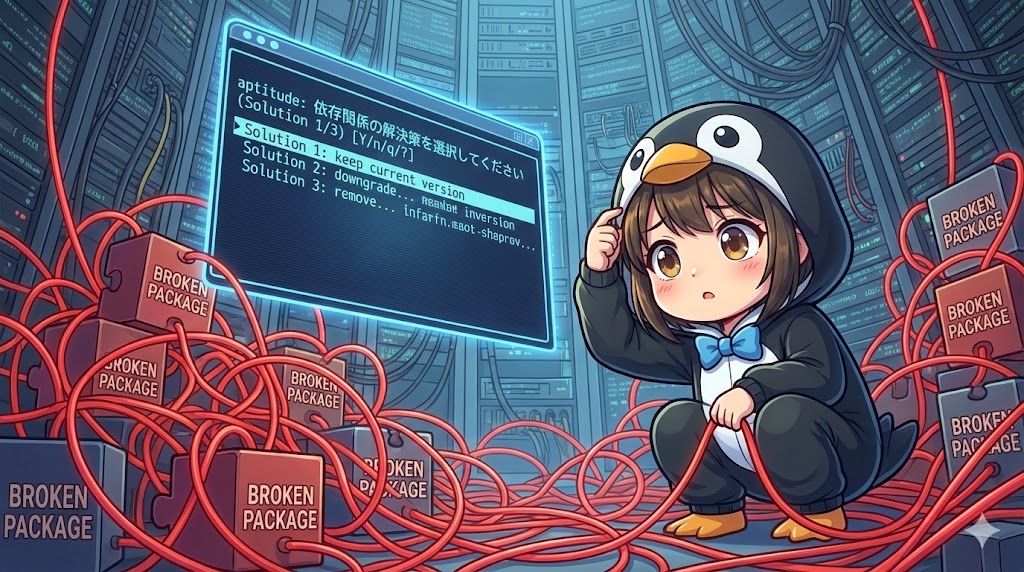
When a dependency conflict occurs during installation, aptitude will present multiple solutions (“Solution 1,” “Solution 2,” etc.). Read the screen carefully and do not just press Y blindly; ensure that important packages are not being removed.
Advanced Usage
Using Interactive Mode (TUI)
If you run the command without any arguments, a text-based user interface (TUI) starts. You can use your mouse and keyboard inside the terminal.
# Start TUI mode
sudo aptitude
Inside the TUI, you can use keys like u (update), U (mark upgrades), and g (go/execute). Press q to quit.
Summary
aptitude is a powerful tool for managing packages with complex dependencies.
By understanding the status flags (p, i, c), you can gain a clear understanding of your system’s state. Even if you usually use apt, consider using aptitude for resolving dependency errors or performing advanced searches.