Overview
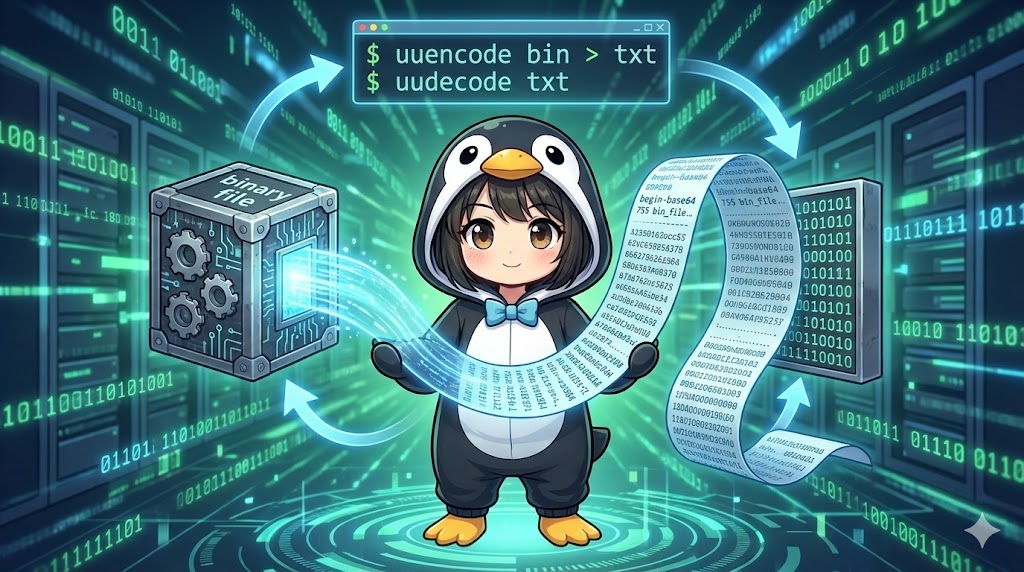
These commands allow you to convert binary files (such as images, executables, or compressed archives) into an “ASCII text format” that can be pasted into email bodies or text-based forums. You can then use the corresponding command to restore the text back into its original binary form.
While the base64 command is more common today, uuencode is unique because it embeds the original filename and file permissions within the encoded data.
Note: In many Linux environments, these tools are included in the sharutils package.
Specifications (Arguments and Options)
Syntax
Encoding (Binary to Text)
uuencode [options] [input_file] filename_for_restoration
If you omit the input file, it reads from standard input. The name for restoration is required.
Decoding (Text to Binary)
uudecode [options] [input_file]
Main Arguments and Options
| Command | Option | Description |
| uuencode | -m | Uses Base64 format (MIME-compatible) instead of the traditional format. This is recommended. |
| uudecode | -o <file> | Ignores the embedded filename and saves the result as the specified file name. |
Basic Usage
This is the standard process for converting a binary file to text and then restoring it to verify they are identical.
Command
# 1. Encode /bin/ls using Base64 format and save it as ls-ascii
# (Specify 'ls-restored' as the name to be used during restoration)
uuencode -m /bin/ls ls-restored > ls-ascii

# 2. Check the beginning of the generated text file
head -n 3 ls-ascii

# 3. Restore the binary from the text file
uudecode ls-ascii

# 4. Compare the original file with the restored file (No output means they match)
diff /bin/ls ls-restored
Execution Result (head command output)
begin-base64 755 ls-restored
f0VMRgIBAQAAAAAAAAAAAAIAPgABAAAAwARAAAAAAABAAAAAAAAAAOgPAAAA
AAAAAEAAOAACAEAAAgABAAEAAAA4AAEAAAA4AAEAAAAAAAAAAIAAAAAAAAAA
Note: The begin-base64 line contains the permissions (755) and the restoration filename (ls-restored).
Practical Commands
Comparing Formats (Default vs. Base64)
The default format (old) and the Base64 format (-m) use different headers and character sets.
# Default format (historical format)
uuencode test.bin test.bin > default.txt
head -n 1 default.txt
# Output: begin 644 test.bin

# Base64 format (Recommended)
uuencode -m test.bin test.bin > base64.txt
head -n 1 base64.txt
# Output: begin-base64 644 test.bin
Restoring with a Custom Filename
By default, uudecode uses the filename embedded in the data. Use the -o option to save it with a name of your choice.
# Restore archive.tar.gz.txt and save it as restored_data.tar.gz
uudecode -o restored_data.tar.gz archive.tar.gz.txt
Using /dev/stdout for Pipelines
If you specify /dev/stdout as the restoration name during encoding, the data will flow directly to standard output during decoding instead of creating a file. This is useful for pipelines.
# Encode: Set restoration name to /dev/stdout
uuencode archive.tar.gz /dev/stdout > archive.txt

# Decode: Pipe directly into the tar command without creating an intermediate file
uudecode -o /dev/stdout archive.txt | tar xzv
Decoding from Standard Input
You can decode data received through a pipe rather than from a file.
# Read content from standard input and restore it
cat ls-ascii | uudecode -o ls-manual-restore
Customization Points
- Always use -m: Unless you have a specific reason to use the old format, it is highly recommended to use the
-m(Base64) option for better compatibility. - Filename vs. Redirect: The last argument in the
uuencodecommand is the “name used when restored,” not the name of the text file created. You must use the>redirection to save the encoded text to a file.
Important Notes
- File Size Increase: Encoding binary data as text increases the file size by approximately 33%.
- Not Encryption: This only converts data into readable characters. It does not provide security, password protection, or encryption.
- Command Availability: These tools might not be installed in minimal Linux installations. Install the
sharutilspackage if they are missing.
Application
Archive and Convert a Directory to Text
You can pipe a compressed archive directly into uuencode to create a single text-based backup of a directory.
# Compress the logs directory and convert it to text in one step
tar czf - ./logs | uuencode -m logs_backup.tar.gz > backup_logs.txt
Summary
The uuencode and uudecode commands are classic, reliable tools for handling binary data as text. While base64 is now the standard for simple encoding, uuencode remains useful in scripts and backups because it keeps the filename and permission metadata bundled with the data. Use these when you need to store or transfer the file’s identity along with its content.