Overview
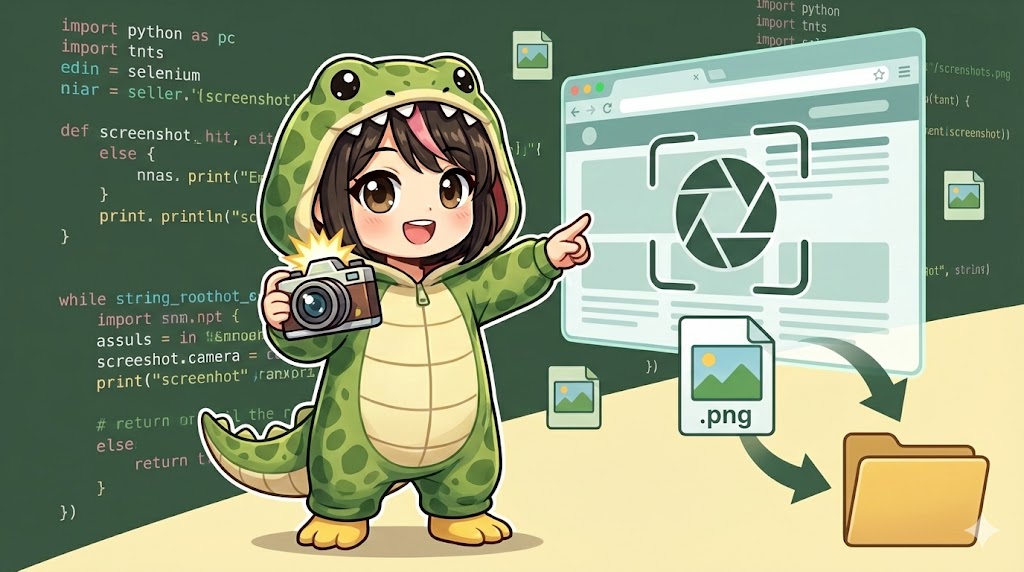
This article explains how to use Selenium to save the currently displayed web page as an image file (PNG format). This feature is essential for recording evidence during automated testing or collecting screen data while crawling the web.
Specifications (Input/Output)
- Input: The file path (file name) where you want to save the image.
- Output: An image file generated at the specified path (PNG is recommended).
- Requirement: Selenium WebDriver must be running with a browser open.
Basic Usage
This is the basic code to save a screenshot of the current page with a specific file name.
# driver = webdriver.Chrome() ...

# Save the current screen as "screenshot.png"
driver.save_screenshot("screenshot.png")
Full Code
This is a complete implementation example that accesses a website, waits for the page to load, takes a screenshot, and then closes the browser.
from selenium import webdriver
import time
import os

def capture_web_page():
    """
    Demo function to capture and save a screenshot of a specified URL.
    """
    driver = webdriver.Chrome()

    # Settings for the image file
    filename = "myimage.png"
    target_url = "https://morinokabu.com"

    try:
        # 1. Access the site
        print(f"Accessing: {target_url}")
        driver.get(target_url)

        # Wait a short time for the page to load and stabilize
        time.sleep(2)

        # 2. Save the screenshot
        # Returns True if successful
        success = driver.save_screenshot(filename)

        if success:
            print(f"Screenshot saved: {os.path.abspath(filename)}")
        else:
            print("Failed to save the screenshot.")

    except Exception as e:
        print(f"An error occurred: {e}")

    finally:
        driver.quit()

if __name__ == "__main__":
    capture_web_page()
Customization Points
Types of Save Methods
Selenium provides several methods for taking screenshots depending on your needs.
| Method | Description | Use Case |
| driver.save_screenshot(filename) | Saves to a file. | Most common method. Saves in PNG format. |
| driver.get_screenshot_as_file(filename) | Saves to a file. | Similar to save_screenshot but returns False on IO errors. |
| driver.get_screenshot_as_png() | Gets binary data. | Use this if you want to handle image data in memory without saving a file. |
| element.screenshot(filename) | Saves only an element. | Captures only a specific button or area (WebElement) instead of the whole screen. |
Important Notes
Capture Range
The behavior of save_screenshot depends on the browser you use.
- Firefox: Often captures the entire page, including parts that require scrolling.
- Chrome: Usually only captures the currently visible area (the viewport). If you need to capture the full page in Chrome, you may need to use headless mode or DevTools protocols.
File Overwriting
If a file with the same name already exists, it will be overwritten without any warning. If you are taking multiple screenshots, it is best to include a timestamp in the file name (e.g., img_20260113_1700.png).
Advanced Usage
This method allows you to take a screenshot of a specific element, such as a logo or a graph, rather than the entire screen.
from selenium import webdriver
from selenium.webdriver.common.by import By

def capture_element_only():
    driver = webdriver.Chrome()
    driver.get("https://www.google.com")

    try:
        # Identify the Google logo element
        # (Note: selectors may change over time)
        logo_element = driver.find_element(By.CSS_SELECTOR, "img[alt='Google']")

        # Capture and save only that specific element
        logo_element.screenshot("google_logo.png")
        print("Logo image saved successfully.")

    finally:
        driver.quit()

if __name__ == "__main__":
    capture_element_only()
Summary
driver.save_screenshot() is a powerful and easy way to record the screen. Use it to improve the reliability of your automation scripts by capturing the screen when a test fails or for regular site monitoring. If you only need specific parts of a page, element.screenshot() is very convenient.