Environment
- OS: Windows 10 Pro (Version: 20H2)
- Software: Microsoft Excel VBA
Background
While automating Excel tasks, I wanted to implement the operation of “entering cell edit mode (F2 key) and confirming (Enter key)” using VBA. I learned how to do this effectively.
Solution: Use SendKeys
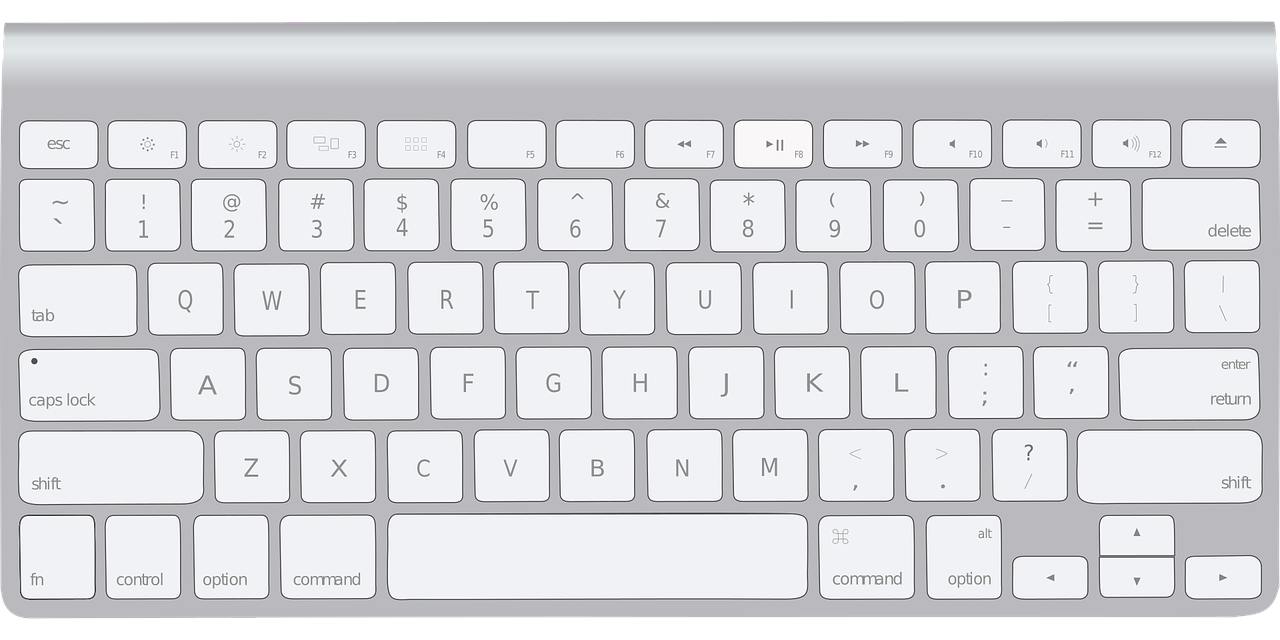
VBA provides the SendKeys method to simulate keyboard input. By using this, you can automatically execute pressing the F2 key followed by the Enter key.
Code Example (Pressing F2 -> Enter)
SendKeys "{F2}", True
SendKeys "{ENTER}", True
Code Explanation
Line 1: SendKeys "{F2}", True Sends the action of pressing the F2 key to enter cell edit mode.
Line 2: SendKeys "{ENTER}", True Sends the action of pressing the Enter key to confirm the edit.
By specifying True for each, VBA waits until the key transmission is complete. Including this wait makes it easier for key events to be processed correctly.
Key Points
SendKeysallows you to reproduce “simulated keystrokes” programmatically.- Write
"{F2}"for the F2 key and"{ENTER}"for the Enter key. - By adding
True, you can prevent VBA from proceeding to the next step until the key input is complete.
Summary
If you want to realize the action of pressing “F2 Key” + “Enter Key” in VBA, you can easily reproduce it by combining these two lines:
SendKeys "{F2}", True
SendKeys "{ENTER}", True
This is a very useful technique when you want to automate edit confirmation tasks in Excel.