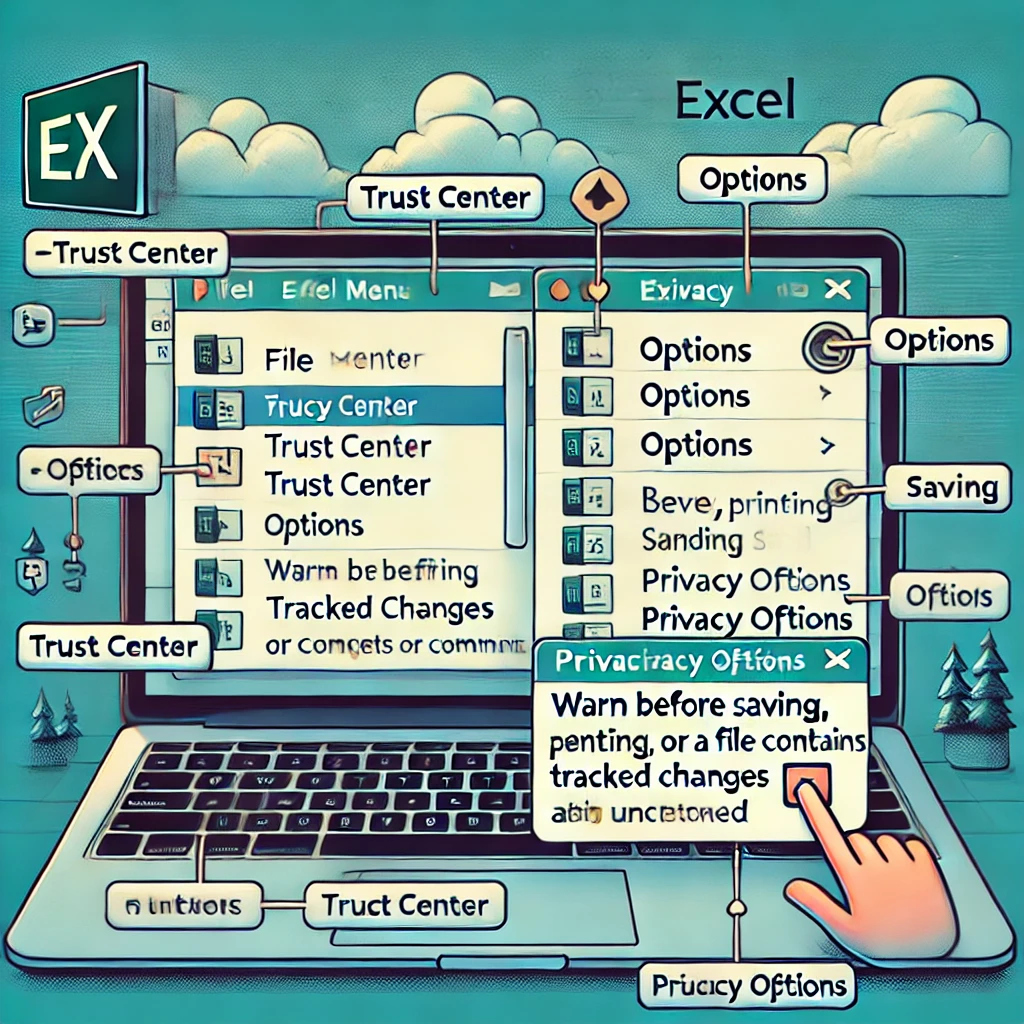
Introduction
When working in Excel, you may encounter the following message every time you save a file:
“Be careful, parts of your document may include personal information that can’t be removed by the Document Inspector.”
If this message appears frequently, it can become quite annoying. In this article, I will introduce how to disable this warning message.
1. Open Excel Options
First, open the “Options” menu in Excel.
- Launch Excel and click the “File” tab in the upper left corner of the screen.
- Select “Options” from the menu on the left.
2. Access Trust Center Settings
Once the Excel Options menu appears, follow these steps to access the “Trust Center.”
- Click “Trust Center” from the left-hand menu.
- Click the “Trust Center Settings…” button on the right side to open the detailed settings screen.
3. Change Privacy Options
In the Trust Center settings screen, you can manage privacy-related options.
- Select “Privacy Options” from the menu on the left.
- Look for the section labeled “Document-specific settings.”
- Uncheck the box that says “Remove personal information from file properties on save”.
- After changing the setting, click the “OK” button to close the windows.
That’s it! From now on, the “Personal Information Warning” message will no longer appear when you save this Excel file.
Important Note
This setting often becomes active (checked) automatically if you have run the “Document Inspector” previously.
By unchecking this box, you are stopping Excel from attempting to automatically strip metadata (like the author’s name) every time you save. This means the warning stops, but the personal information (metadata) remains in the file. If you are sharing the file publicly and need to ensure privacy, remember to check the file properties manually.
Summary
- Go to File > Options.
- Select Trust Center > Trust Center Settings.
- Click Privacy Options.
- Under “Document-specific settings,” uncheck “Remove personal information from file properties on save.”
I hope this helps improve your workflow!






