Introduction
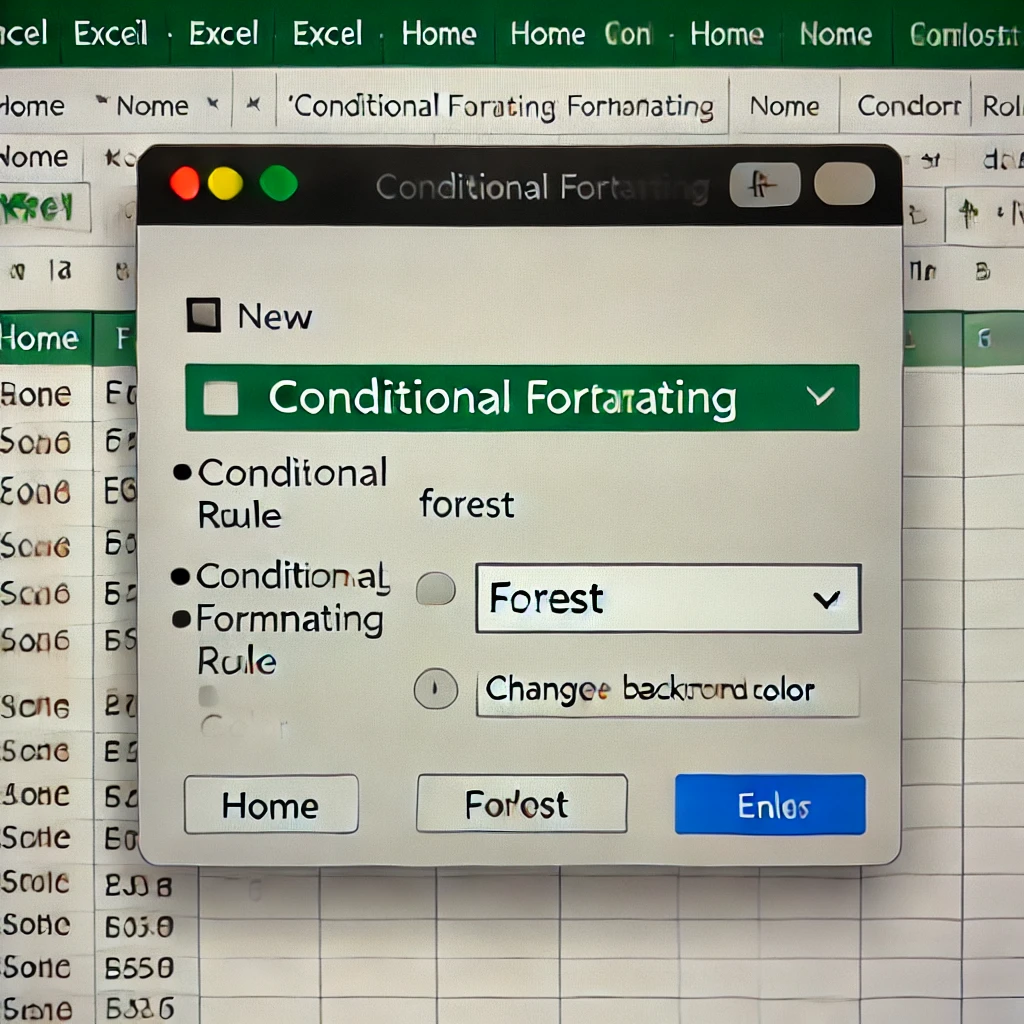
In this article, I will introduce how to automatically change the color of cells containing specific text in Excel. For example, if you want to change the background color of cells containing the word “Forest” (森), you can easily set this up using Conditional Formatting.
What is Conditional Formatting?
Conditional formatting is a convenient feature that automatically changes cell formatting (such as font color or background color) according to the cell’s value or content. By utilizing this, data visualization improves, making it easier to spot important information.
Here, I will introduce the settings to change the background color of cells containing the text “Forest” as a specific example.
Steps
1. Select the Target Range
First, select the range of cells where you want to apply conditional formatting. For example, if you want to specify the range from A1 to A10, drag to select that range.
2. Open the Conditional Formatting Menu
Next, click the “Conditional Formatting” button on the “Home” tab in Excel. A dropdown menu will appear; select “New Rule…” from the list.
3. Set the Rule
The “New Formatting Rule” window will appear. Select “Format only cells that contain” from the rule types.
Next, in the rule description section:
- Set the first dropdown to “Specific Text”.
- Set the second dropdown to “containing”.
- Enter “Forest” (or your target text) in the input field on the right.
4. Specify Format
Specify the format to apply when the text is found. Click the “Format…” button at the bottom right. You can set the background color (Fill tab) or font color. For this example, let’s change the background color to green.
5. Completion
Click “OK” when the settings are complete. Now, the background color of cells containing the text “Forest” will automatically change!
Conclusion
By using Excel’s Conditional Formatting, you can organize data visually and make it easier to understand. Please try this method when you want to find and highlight specific keywords to make them stand out.






