Overview
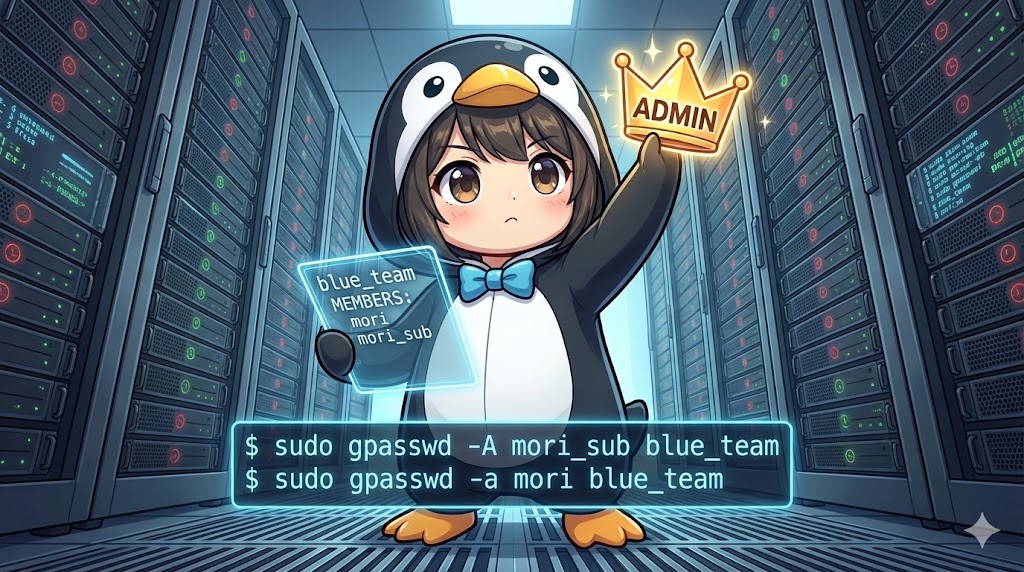
The gpasswd command is a tool used to manage groups by manipulating the /etc/group and /etc/gshadow files. Although the command name includes “passwd,” its primary function today goes beyond simply setting group passwords (a feature rarely used now). Instead, it provides essential features for group operations, such as adding or removing users and appointing group administrators. This command is particularly useful when you want to delegate group management authority to standard users.
Specifications (Arguments and Options)
Syntax
BASH
gpasswd [options] [group_name]
Main Options
| Option | Description |
| -a [user] | Adds the specified user to the group. |
| -d [user] | Removes the specified user from the group. |
| -M [user_list] | Overwrites the group members with the specified list of users (comma-separated). |
| -A [user_list] | Assigns group administrators. Administrators have the authority to add or remove members. |
| -r | Removes the group password. |
| -R | Restricts access to the group (prevents newgrp even if the password is known). |
Basic Usage
Creating a Group and Adding Initial Members
In this example, we will create a new group named blue_team and add the user mori as a member.
BASH
# Create the group
sudo groupadd blue_team

# Check group information (No members initially)
grep blue_team /etc/group
grep blue_team /etc/gshadow

# Add user 'mori' to 'blue_team'
sudo gpasswd -a mori blue_team

# Verify the addition
grep blue_team /etc/group
Example Output
# Before addition
blue_team:x:1005:

# After addition
blue_team:x:1005:mori
Practical Commands
Setting Members in Bulk (Overwrite)
Using the -M option allows you to completely replace the current member list with a new list of users. Any existing members not included in this new list will be removed from the group.
BASH
# Set the members of blue_team to only 'mori' and 'mori_sub'
sudo gpasswd -M mori,mori_sub blue_team

# Verify the results
grep blue_team /etc/group
Example Output
blue_team:x:1005:mori,mori_sub
Appointing a Group Administrator
Normally, adding members to a group requires root privileges. However, by using the -A option to designate a “Group Administrator,” that specific user can execute commands like gpasswd -a for their group without needing sudo.
BASH
# Set 'mori_sub' as the administrator for 'blue_team'
sudo gpasswd -A mori_sub blue_team

# Check administrator info (3rd field in /etc/gshadow)
sudo grep blue_team /etc/gshadow
Example Output
blue_team:!::mori_sub:mori,mori_sub
Note: The fields represent “Group Name”, “Encrypted Password”, “Admin List”, and “Member List” respectively.
Customization
Setting a Group Password
If you run gpasswd [group_name] without any options, you can set a password for the group. This allows users who are not members of the group to temporarily gain the group’s privileges by entering the password using the newgrp command. However, due to high security risks, this practice is generally not recommended in modern systems.
Important Notes
Difference from usermod -G
The usermod -G command rewrites the attributes on the “user side.” If you forget to add the -a (append) option, it will wipe out all other group memberships for that user. In contrast, gpasswd -a adds the user to the “group side,” making it a safer method as it does not affect the user’s other group affiliations.
Immediate Reflection
Changes made to group membership (adding or deleting) are not reflected until the target user logs in again. To apply changes immediately for a user who is currently logged in, they must log out and back in, or execute the newgrp command.
Summary
The gpasswd command is a vital tool for enhancing the flexibility of group operations. While usermod -aG is often used for simple member additions, gpasswd -a is operationally safer as it carries a lower risk of accidental configuration errors. Furthermore, the ability to delegate authority using the -A option is highly effective for reducing the burden on system administrators by entrusting member management to team leaders.