Overview
In Debian-based distributions (such as Ubuntu, Debian, and Kali Linux), dpkg is a low-level management tool used to directly install, remove, and query package files (.deb).
Unlike apt or apt-get, it does not have the ability to download files from internet repositories or automatically resolve dependencies. However, it is an essential tool for manually installing local package files and investigating detailed package information within the system.
Specifications (Arguments and Options)
Syntax
dpkg [action] [option] [package_name or file_name]
Main Actions
| Action | Description |
| -i / –install | Installs a package (.deb file). |
| -r / –remove | Removes a package but keeps configuration files. |
| -P / –purge | Completely removes a package, including configuration files. |
| -l / –list | Lists installed packages (supports patterns). |
| -s / –status | Displays the detailed status of a specific package. |
| -L / –listfiles | Lists all files installed by a specific package. |
| -S / –search | Searches for which package a specific file belongs to. |
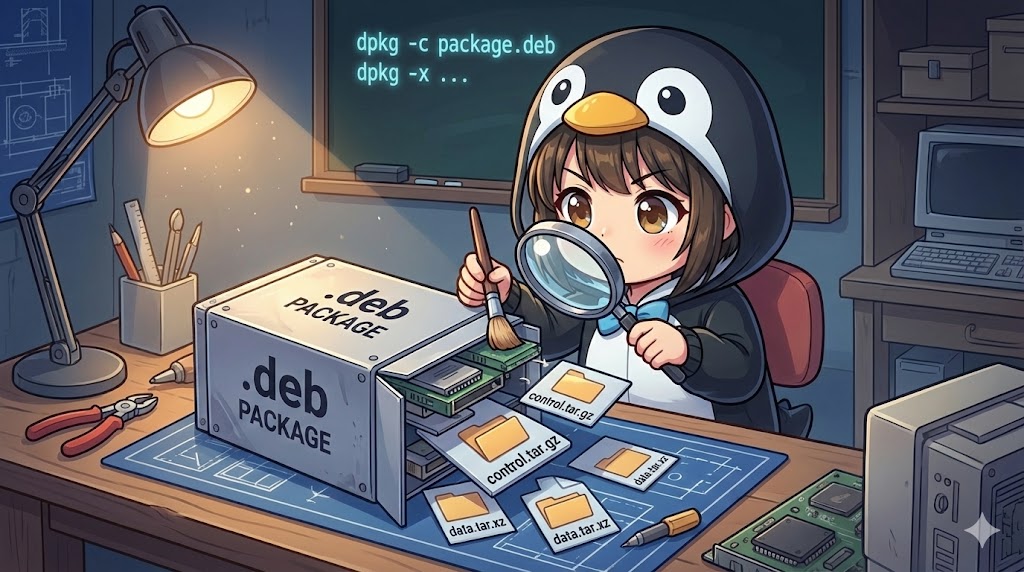
| -c / –contents | Displays the contents (file list) of a package file (.deb). |
| -I / –info | Displays detailed information about a package file (.deb). |
| -x / –extract | Extracts the contents of a package file (.deb) into a specified directory. |
| –fsys-tarfile | Outputs the data portion of a package file (.deb) as a tar format to standard output. |
Basic Usage
To install a .deb file (for example, custom-tool_2.1.0_amd64.deb) that is available locally:
# Install a local package file
sudo dpkg -i custom-tool_2.1.0_amd64.deb
Example output:
Selecting previously unselected package custom-tool.
(Reading database ... 120500 files and directories currently installed.)
Preparing to unpack custom-tool_2.1.0_amd64.deb ...
Unpacking custom-tool (2.1.0) ...
Setting up custom-tool (2.1.0) ...
Processing triggers for man-db (2.9.4-2) ...
Practical Commands
Removing Packages (Keeping Settings vs. Complete Removal)
Use these commands to remove tools that are no longer needed. Use -r if you might reinstall it later and want to keep settings, or -P to wipe everything.
Note: Specify the “package name” here, not the “file name.”
# Remove while keeping configuration files
sudo dpkg -r sample-editor

# Complete removal including configuration files (e.g., /etc/sample-editor.conf)
sudo dpkg -P sample-editor
Checking Package Content Without Installation
Confirm where a .deb file intends to place files on your system before actually installing it.
# Display the file list
dpkg -c custom-tool_2.1.0_amd64.deb
Example output:
drwxr-xr-x root/root         0 2025-01-23 10:00 ./
drwxr-xr-x root/root         0 2025-01-23 10:00 ./usr/bin/
-rwxr-xr-x root/root      1024 2025-01-23 10:00 ./usr/bin/custom-tool
drwxr-xr-x root/root         0 2025-01-23 10:00 ./usr/share/doc/
Extracting Package Content to a Specific Directory
Use this when you want to analyze the contents by extracting them into a folder without installing the package.
# Extract to the 'extracted' folder in the current directory
mkdir extracted
dpkg -x custom-tool_2.1.0_amd64.deb ./extracted
Converting a deb Package to tar Format to Extract Specific Files
Even without the ar command, dpkg can output the data part of a .deb file as a tar stream. You can pipe this to the tar command to extract specific files.
# Convert a deb file to tar format and save it
dpkg --fsys-tarfile monitor-app_1.5.0_amd64.deb > monitor-app.tar

# Check for files containing 'bin' inside the tar archive
tar tvf monitor-app.tar | grep bin
Listing the Status of Installed Packages
Search for packages currently installed on the system.
# Show the status of packages starting with 'python3'
dpkg -l "python3*"
Customization Points
Adjusting Display Width (COLUMNS)
The output of dpkg -l may be cut off depending on the screen width. To see the full name for script processing or logs, specify the COLUMNS environment variable.
COLUMNS=200 dpkg -l "openssl*"
Checking Metadata Fields (-f)
Extract specific fields from the package file’s metadata (Control file).
# Display only the package dependencies (Depends)
dpkg -f custom-tool_2.1.0_amd64.deb Depends
Important Notes
No Dependency Resolution
When you try to install a package with dpkg -i, it will not automatically download missing libraries. If the installation fails due to a “dependency error,” you must run sudo apt install -f immediately after to repair the dependencies.
Difference Between File Name and Package Name
- When installing (-i), checking contents (-c), or extracting (-x): Specify the file name (e.g.,
xxx.deb). - When removing (-r, -P) or checking status (-l, -s): Specify the package name (e.g.,
xxx).
Root Privileges
Operations that change the system, such as installation or removal, require sudo. Actions like search or info can be performed by general users.
Advanced Usage
Finding Which Package a Specific File Belongs To (-S)
Use this to find out which package provided a specific file, such as /bin/ls. This is important for troubleshooting.
# Search for packages containing the specified path
dpkg -S /bin/ls
Example output:
coreutils: /bin/ls
Summary
The dpkg command is the most basic tool for package management in Debian-based systems. While apt is generally used for daily updates, dpkg is the only solution for installing packages in offline environments, performing complete removals including configuration files, or investigating the origin of specific files.