Overview
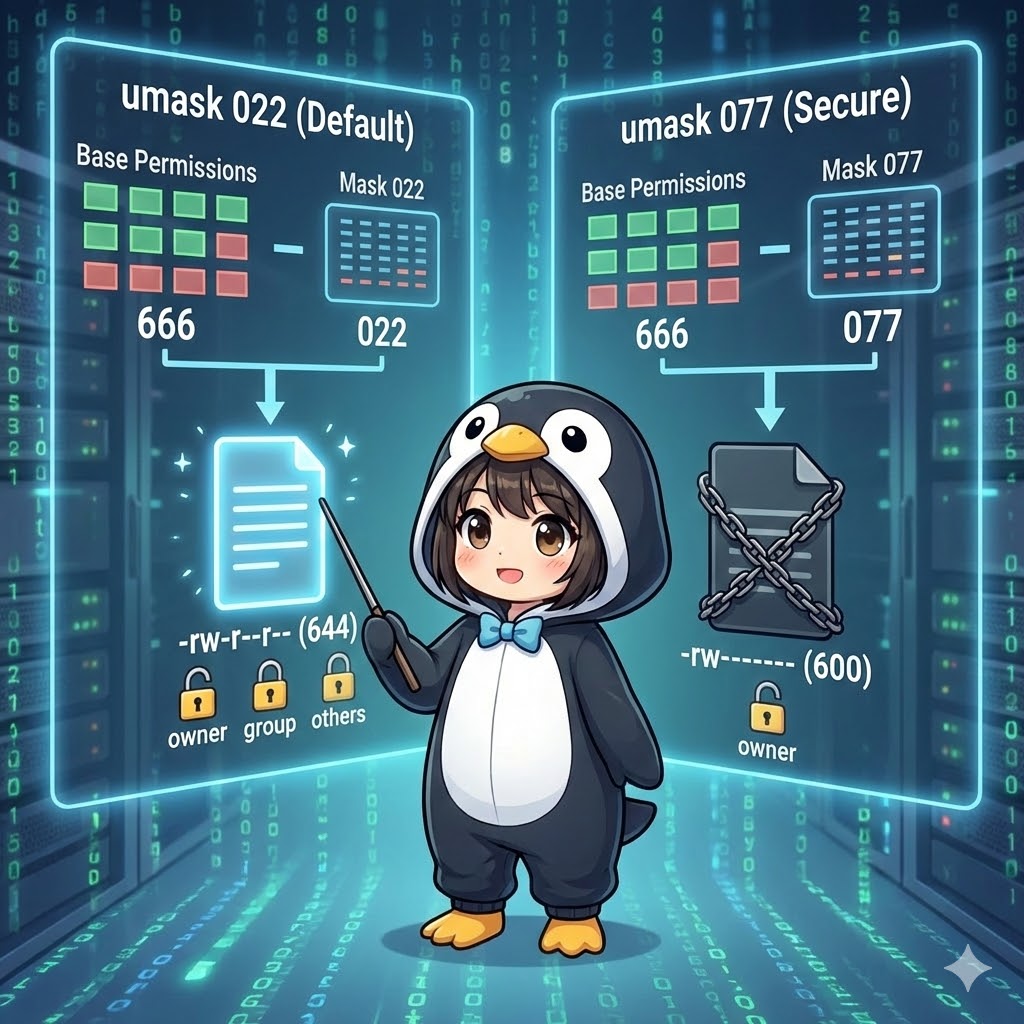
The umask command controls the default access permissions (permissions) assigned to files and directories when they are newly created. Unlike commands that specify which permissions to give, umask works by specifying which permissions to “mask” (restrict or subtract). Setting a proper umask value is an important part of a server’s security policy to ensure that unauthorized users cannot read or write to your files.
Specifications (Arguments and Options)
Syntax
umask [options] [mask_value]
Main Arguments and Options
| Option | Description |
-S | Displays the allowed permissions in symbolic format (rwx) instead of numeric format. |
-p | Displays the current setting in a format that can be reused directly as a command (e.g., umask 0022). |
Basic Usage
Running the command without any options displays the current numeric umask value.
Command
# Check the current umask value
umask
Execution Result
On most Linux distributions, the default value is usually 0022 or 0002.
0022
Practical Commands
Display umask in a Readable Format
Since numeric strings can be hard to visualize, use the -S option to see the “final allowed permissions.”
# Display in symbolic format
umask -S
Example Output:
u=rwx,g=rx,o=rx
This indicates that the owner has full access, while the group and others can only read and execute (equivalent to chmod 755).
Changing the Mask Value and Checking Permissions
The actual permissions are calculated by subtracting the umask value from the base permissions. The base permission for files is 666 (rw-rw-rw-) and for directories is 777 (rwxrwxrwx).
# Experiment 1: Set mask to 000 (No restrictions)
umask 000
touch file_open.txt
ls -l file_open.txt

# Experiment 2: Set mask to 777 (Strip all permissions)
umask 777
touch file_closed.txt
ls -l file_closed.txt
Results:
- Experiment 1:
666 - 000 = 666 (-rw-rw-rw-) - Experiment 2:
666 - 777 = 000 (----------)
Reusing Settings
Use the -p option if you want to output the setting in a way that can be saved into a script.
# Output in command format
umask -p
# Result: umask 0022
Customization Points
- Recommended Values:
- 0022: Standard server setting. Owner can read/write; others can only read. (Files: 644, Directories: 755).
- 0077: High security setting. No one except the owner can access anything. (Files: 600, Directories: 700).
- Calculation Method: Actual Permission = (Base Permission) – (umask value).
- Example for a file:
666–022=644 (rw-r--r--).
- Example for a file:
Important Notes
- Temporary Settings: Running
umaskin the terminal only lasts for the current session. To make it permanent, you must add it to a configuration file like.bashrc. - Existing Files: Changing the umask does not affect files that already exist. Use
chmodto change existing file permissions. - Execution Bit Restriction: For security reasons, the base permission for files is
666. This means files will not get the execution (x) bit automatically even if the umask is000. You must usechmod +xmanually if a script needs to be executable.
Application: Change Default Settings for New Users
To set a default umask for all new users added to the system, add the setting to /etc/skel/.bashrc. This file is used as a template whenever a new user is created with useradd.
# Add "umask 0077" to the end of the new user template (requires sudo)
echo "umask 0077" | sudo tee -a /etc/skel/.bashrc

# Verify the content
tail -n 1 /etc/skel/.bashrc
Summary
The umask command is a preventive security tool that determines the safety level of “newly born” files on your system. Since manually fixing every file with chmod is inefficient, it is recommended to define a proper umask in login scripts (like .bashrc) in environments like web or database servers. For users handling highly confidential information, a setting of 0077 is effective for blocking all access from others.