Overview
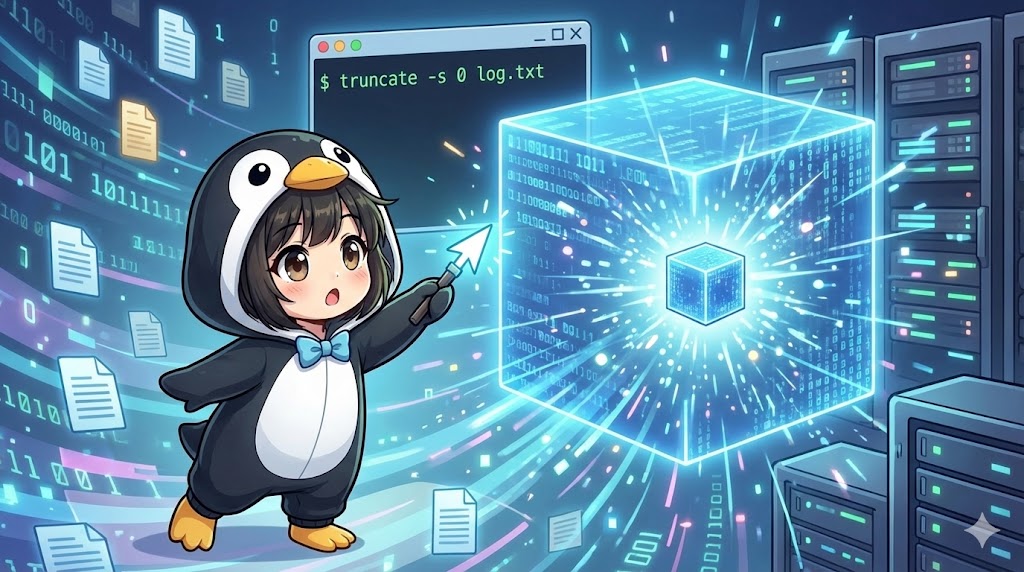
The truncate command allows you to “shrink” or “expand” a file to a specific byte size without actually reading or writing its contents. It is commonly used to create huge test files that consume minimal disk space (sparse files) or to instantly reset log files to 0 bytes. The most significant feature is that the process completes almost instantaneously.
Specifications (Arguments and Options)
Syntax
truncate [options] filename...
Main Arguments and Options
| Option | Description |
-s <size> | Specifies the file size (Required). Supports units like K, M, G, etc. |
-c | Do not create any files if they do not exist (no-create). |
-r <file> | Sets the size to match a specified reference file. |
Size Specification Units
| Unit | Meaning | Calculation Base |
| K / M / G | KiB, MiB, GiB | Base 1024 (1M = 1,048,576 bytes) |
| KB / MB / GB | KB, MB, GB | Base 1000 (1MB = 1,000,000 bytes) |
Basic Usage
Specify a size to create a new file. If the file already exists, its size will be changed to the specified value.
Command
# Create a 10MB file
truncate -s 10M dummy.dat
Execution Result
If you verify with ls -l, you can see the file is exactly the specified size.
-rw-r--r-- 1 user user 10485760 Jan 20 12:00 dummy.dat
Practical Commands
Comparing Sizes Based on Units
In Linux coreutils, the criteria for MB and M are different. Accuracy is important if you need a specific byte count.
# 1MB based on powers of 1000 (1,000,000 bytes)
truncate -s 1MB file_1000.txt

# 1MiB based on powers of 1024 (1,048,576 bytes)
truncate -s 1M file_1024.txt

# Compare the sizes
ls -l file_1*
-rw-r--r-- 1 user user 1048576 Jan 20 12:01 file_1024.txt
-rw-r--r-- 1 user user 1000000 Jan 20 12:01 file_1000.txt
Shrinking (Truncating) an Existing File
If a file is larger than the specified size, the data at the end of the file will be deleted.
# Check original content and size (14 bytes)
echo "This is test." > test.txt
ls -l test.txt

# Shrink to 10 bytes
truncate -s 10 test.txt

# Verify the result (The end "est." and newline are gone)
ls -l test.txt
cat test.txt
-rw-r--r-- 1 user user 10 ... test.txt
This is t
Expanding a File (Relative Specification)
You can use + or - to change the size relative to the current size. When a file is expanded, the new area is filled with null characters (\0).
# Add 1GB to the current size
truncate -s +1G database.db

# Reduce the current size by 500KB
truncate -s -500K logfile.log
Customization Points
- Sparse Files: When you expand a file to a huge size (e.g., 1TB) using
truncate, it does not actually consume that much disk space because the null-filled area is not physically allocated. This is called a “sparse file.” You can see the difference by comparingls -l(apparent size) withdu -h(actual disk usage). - Bulk Processing: You can clear all logs in a directory by using a wildcard, such as
truncate -s 0 *.log.
Important Notes
- Data Loss: When shrinking a file, any data beyond the specified size is permanently deleted and cannot be recovered.
- Expanded Content is Empty: Expanding a file does not add real data; it simply moves the “end of file” marker. The new space is treated as null data.
- Required -s Option: Unless you are using the
-r(reference) option, you must specify a size with-sor the command will result in an error.
Advanced Application
Reset Log Files while Maintaining Permissions and Inodes
If you delete a log file with rm and recreate it with touch, the file ownership and permissions might change. Additionally, active processes might lose track of the file. Using truncate allows you to clear the content while keeping the file itself intact.
# Safely reset a running server log
sudo truncate -s 0 /var/log/nginx/access.log
Summary
The truncate command is a convenient tool for log management and creating test data because it controls the file “frame” or size without manipulating the content. It is far more efficient than using dd to create zero-filled files for transfer tests. However, you must understand that shrinking is a destructive operation and be careful with the difference between units (e.g., KB vs K).