Overview
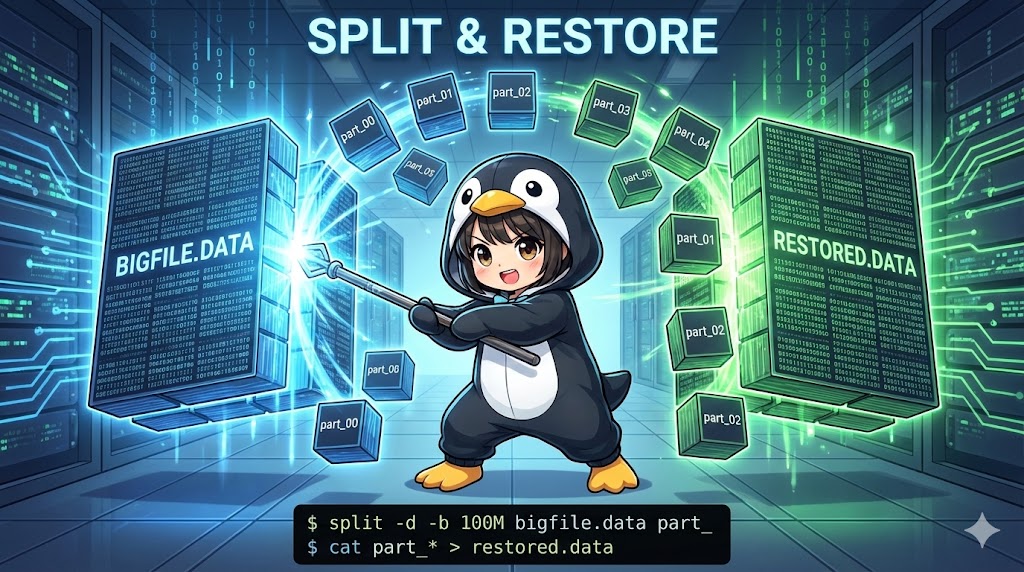
The split command is used to break a single large file into multiple smaller files based on a specific number of lines or a specific file size. This is very helpful when you need to bypass email attachment size limits or store huge data on media with file size restrictions (like FAT32, which has a 4GB limit). You can easily restore or combine the split files back into the original file using the cat command.
Specifications (Arguments and Options)
Syntax
split [options] [input_file] [output_prefix]
Main Arguments and Options
| Option | Description |
-l <lines> | Splits the file every specified number of lines (default is 1000 lines). |
-b <size> | Splits the file by specified byte size (e.g., 10m, 500k). |
-d | Uses numeric suffixes (00, 01…) instead of alphabetic suffixes. |
-a <length> | Specifies the length of the suffix (default is 2 digits). |
--verbose | Displays the name of each split file as it is created. |
--additional-suffix=<string> | Adds a specific string (like an extension) to the end of each split file. |
-C <size> | Splits the file by size without breaking individual lines. |
Basic Usage
If you run the command without any options, it splits the input file every 1000 lines and creates files named xaa, xab, xac, and so on.
Command
# Split bigdata.log every 1000 lines (output files will be xaa, xab...)
split --verbose bigdata.log
Execution Result
creating file 'xaa'
creating file 'xab'
creating file 'xac'
Practical Commands
Splitting and Restoring Binary Files
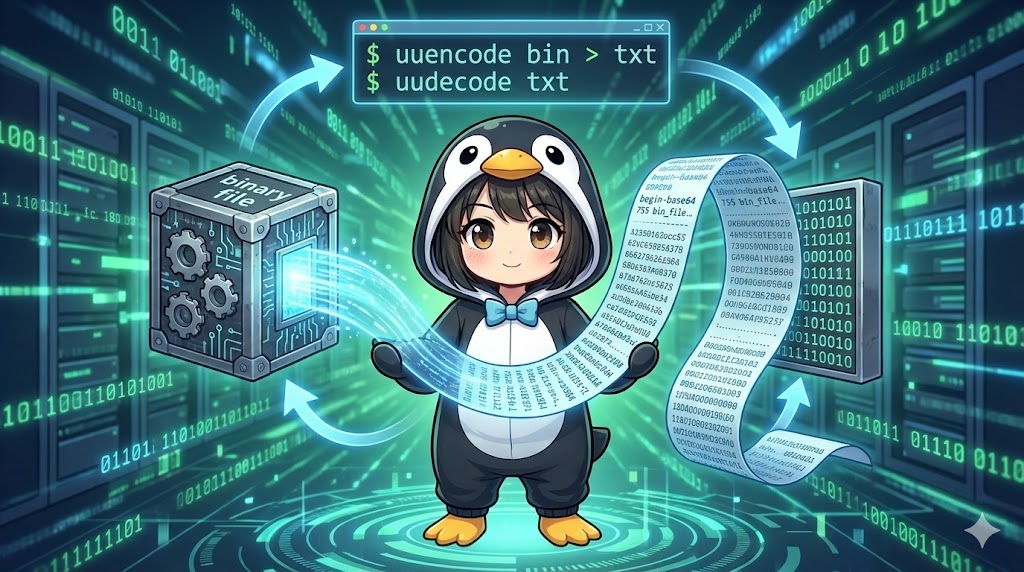
This example shows how to convert a binary file (like ls) into a text format (using uuencode), split it, and then combine it back into the original executable file.
Note: If uuencode is not installed, use sudo apt install sharutils or sudo yum install sharutils.
1. Prepare the Test File
# Encode /bin/ls into a text file named ls.uuencode
uuencode -m - < /bin/ls > ls.uuencode

# Check the line count
wc -l ls.uuencode
2. Split the File
We use numeric suffixes (-d) and a prefix of ls- for clarity.
# Split using numeric suffixes starting with "ls-"
split --verbose -d ls.uuencode ls-
creating file 'ls-00'
creating file 'ls-01'
creating file 'ls-02'
...
3. Check the Split Files
wc -l ls-*
4. Combine (Restore) and Verify
Use the cat command to combine the files, check for differences, and then decode the result.
# Combine all parts using a wildcard
cat ls-* > ls.merge

# Check for differences between the original and merged files (no output means they match)
diff ls.uuencode ls.merge

# Decode the merged file back into a binary
uudecode ls.merge > ls

# Grant execution permission and test it
chmod +x ls
./ls --version
If it displays the version of the ls command, the process was successful.
Customization Points
- Split by Size: Use the
-boption for compressed files or disk images where lines do not matter. Example:split -b 100M large_video.mp4 video_part_. - Maintain Extensions: Use
--additional-suffix=.txtto make split files easier to open in text editors.
Important Notes
- Merge Order: When using
cat ls-*, the shell expands the wildcard in alphabetical or numerical order. If you have many files, use numeric suffixes (-d) and enough padding digits (-a) to ensurels-9does not come afterls-10. - Disk Space: Splitting creates new files while keeping the original. You temporarily need twice the original file size in disk space.
- Line Breaking Risk: Splitting a text file with
-b(byte size) might cut a line in half. For text files, it is safer to use-l(lines) or-C(size while keeping lines intact).
Application
Split Log Files by Size Without Breaking Lines
The -C option is useful when you want files to be about 10MB each but do not want individual lines to be cut.
# Split into files of max 10MB without breaking lines
split -C 10M --verbose --numeric-suffixes app.log app_part_
Summary
The split command is a simple solution for overcoming network transfer limits and storage file size restrictions. Remember the pair: “split to break, cat to combine.” This is frequently used for managing backup data or preparing large CSV files for parallel processing.