Overview
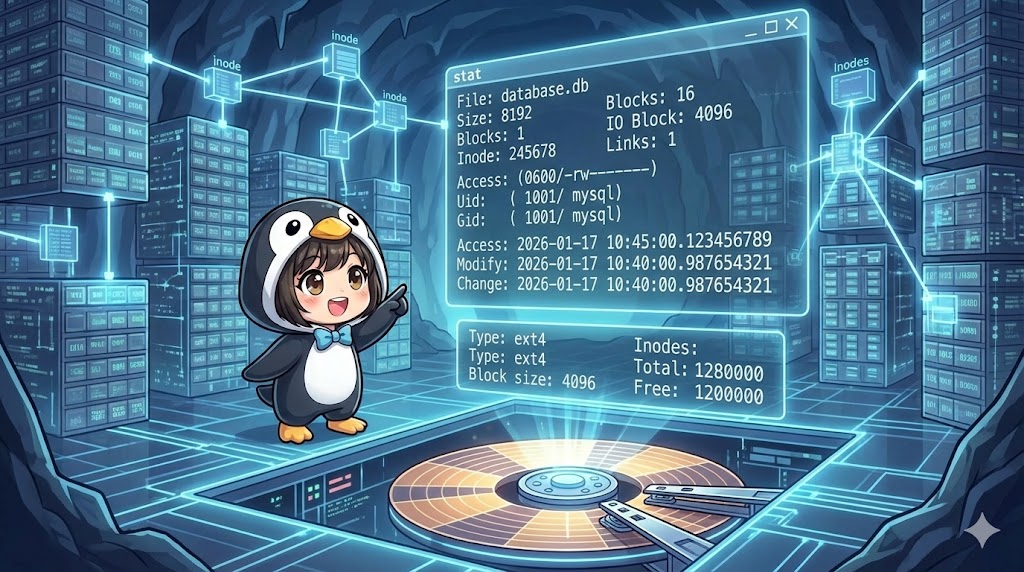
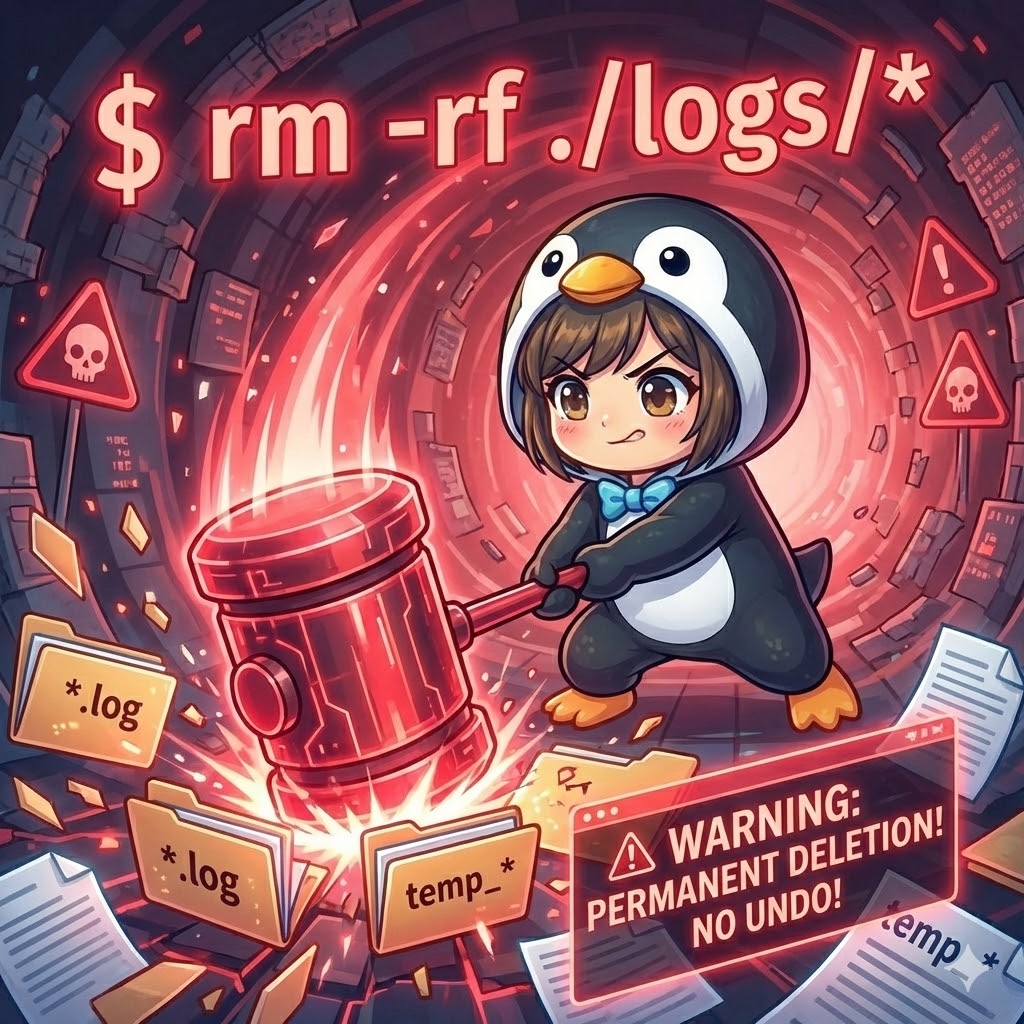
The standard rm command only removes the link to a file in the system. The actual data remains on the disk. The shred command overwrites the file area with random data multiple times. This makes it extremely difficult to recover the data. It is an essential tool for safely deleting sensitive information like private keys or personal files.
Specifications (Arguments and Options)
Syntax
shred [options] filename
Main Arguments and Options
| Option | Description |
-f | Change permissions to force execution if there is no write permission. |
-n <number> | Specify the number of times to overwrite (default is 3). |
-u | Delete (unlink) the file after the overwriting process is complete. |
-z | Overwrite with zeros at the end to hide the shredding process. |
-x | Maintain the exact file size (prevents extra padding). |
-v | Show the progress of the operation (verbose). |
-s <size> | Shred only the specified number of bytes. |
--random-source=<file> | Use a specific file (like /dev/urandom) as the source of random data. |
Basic Usage
This command overwrites a file with random data to destroy its content. At this stage, the file itself is not deleted; it remains on the disk filled with junk data.
Command
# Destroy the contents of a sensitive configuration file
shred -v secret_config.yaml
Execution Result
Using -v shows the progress. By default, the command performs three passes of random writing.
shred: secret_config.yaml: pass 1/3 (random)...
shred: secret_config.yaml: pass 2/3 (random)...
shred: secret_config.yaml: pass 3/3 (random)...
If you run cat secret_config.yaml after this, you will only see meaningless characters.
Practical Commands
Delete a File After Destroying It
This is the most common usage. It overwrites the data to make it unrecoverable and then removes it from the file system.
# Safely erase a database dump file
shred -uv database_dump.sql
shred: database_dump.sql: pass 1/3 (random)...
shred: database_dump.sql: pass 2/3 (random)...
shred: database_dump.sql: pass 3/3 (random)...
shred: database_dump.sql: removing
shred: database_dump.sql: renamed to 00000000000000000
shred: database_dump.sql: removed
Destroy Content Without Changing File Size
The -x option keeps the file size exactly the same. This is useful in environments that monitor log file sizes, as it avoids alerts while making the content unreadable.
# Destroy log content while keeping the file size unchanged
shred -xv server_access.log
Specify Overwrite Count and Zero-Clear
You can set the number of overwrites (-n) and overwrite with zeros (-z) at the end. This makes the file look like “empty data” instead of “random junk.”
# Overwrite 5 times with random data, then fill with zeros
shred -v -n 5 -z private_key.pem
shred: private_key.pem: pass 1/6 (random)...
shred: private_key.pem: pass 2/6 (random)...
shred: private_key.pem: pass 3/6 (random)...
shred: private_key.pem: pass 4/6 (random)...
shred: private_key.pem: pass 5/6 (random)...
shred: private_key.pem: pass 6/6 (000000)...
Customization Points
- Iteration Count (
-n): You can decrease the number to save time or increase it for higher security. For modern HDDs, the default 3 times is usually enough. - Zero-fill (
-z): This is not required if you use-u(delete), but it is useful if you keep the file or want to improve disk image compression. - Targets: You can specify device files like
/dev/sdbto erase an entire partition. Warning: This is extremely dangerous.
Important Notes
- SSDs and Flash Memory: SSDs, USB drives, and SD cards use wear-leveling technology.
shredmight not overwrite the same physical location. It does not guarantee complete deletion on these media. Use full disk encryption or Secure Erase features instead. - Journaling File Systems: On systems like Ext3, Ext4, or XFS, data might remain in the journal. This can prevent
shredfrom being 100% effective. - No Recursive Deletion: There is no option like
rm -r. To process all files in a directory, you must use thefindcommand. - Unrecoverable: Files processed with this command cannot be recovered. Be very careful not to target the wrong files.
Applications
Batch Processing with the find Command
You can search for specific files and securely delete them all at once.
# Search for .tar.gz files in the archive directory and shred them individually
find ./archive -name "*.tar.gz" -exec shred -uv {} \;
Summary
The shred command is a powerful tool to prevent data recovery by physically overwriting files. It is important for server security and data disposal. However, because its effect is limited on SSDs and some file systems, you should understand your hardware and use it alongside other security measures like encryption.