Overview
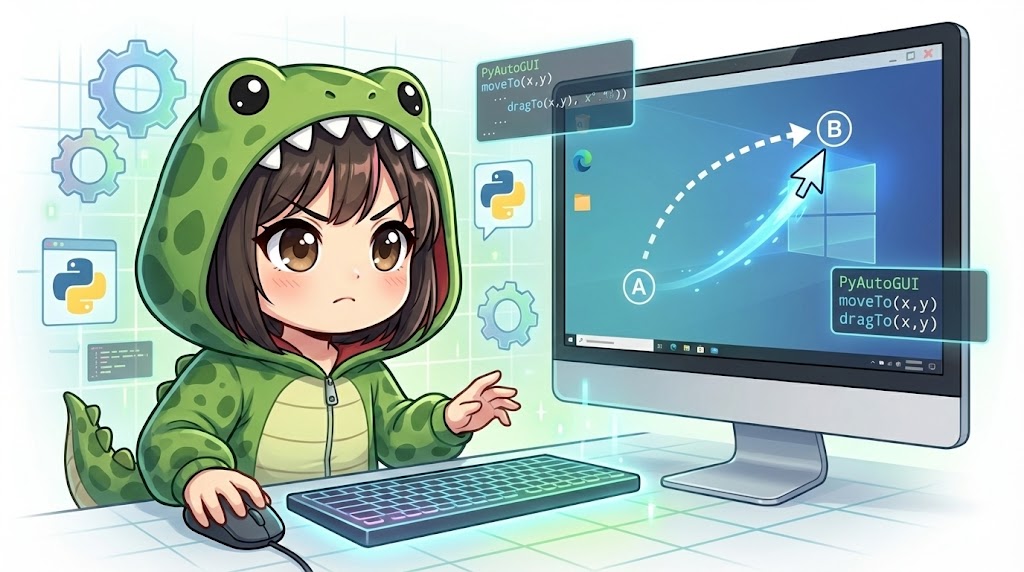
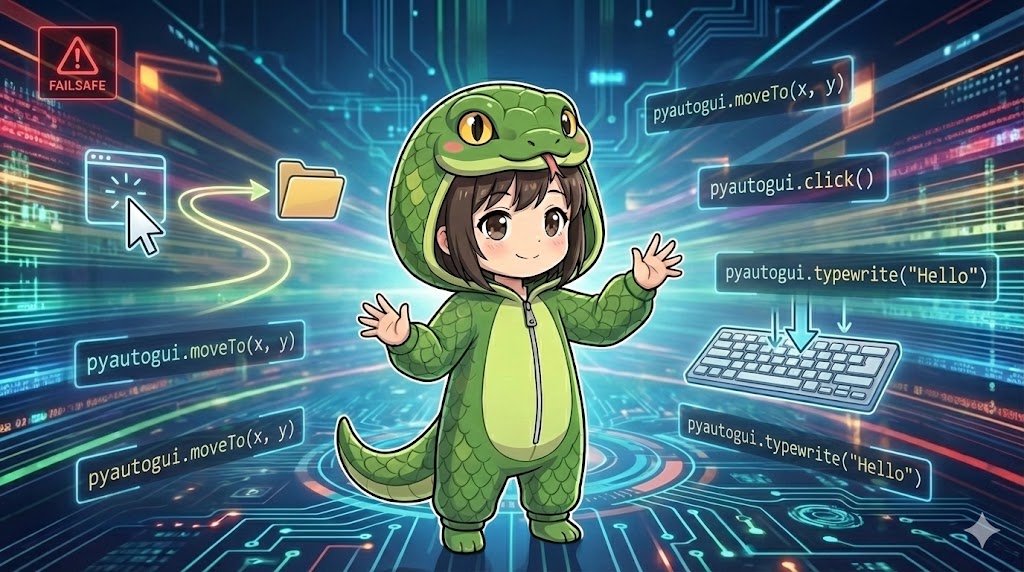
This recipe uses the Python library PyAutoGUI to programmatically control desktop operations such as mouse movement, clicking, and keyboard input. This is useful for automating repetitive data entry tasks or GUI testing. We will also cover the dependencies required to run this in Linux environments like Ubuntu.
Specifications (Input/Output)
- Input: Sequence of operations (coordinates, strings, key presses).
- Output: Execution of mouse and keyboard actions on the desktop.
- Requirements:
pyautoguilibrary.- For Linux, OS packages like
scrot,python3-tk, andpython3-devmay be necessary.
Basic Usage
import pyautogui

# Move the mouse to coordinates (100, 100) over 1.0 second
pyautogui.moveTo(100, 100, duration=1.0)

# Perform a left click at the current position
pyautogui.click()
Full Code Example
This demo code enables safety features (Fail-Safe), retrieves the screen size, moves the mouse, and performs text input. It assumes you have a text editor like Notepad open and active.
import pyautogui
import time

def main():
    # 1. Safety Feature (Fail-Safe) Setting
    # If you move the mouse cursor to any of the four corners of the screen,
    # the program will stop immediately. This is essential to stop a runaway script.
    pyautogui.FAILSAFE = True

    # Set a pause time between actions to prevent errors from running too fast
    pyautogui.PAUSE = 0.5

    print("Starting automation. Move mouse to the top-left corner to stop.")
    print("Starting in 3 seconds. Please activate your text editor...")
    time.sleep(3)

    # 2. Get screen information
    screen_width, screen_height = pyautogui.size()
    print(f"Screen size: {screen_width} x {screen_height}")

    # 3. Mouse operations
    # Move to the center of the screen over 2.0 seconds
    pyautogui.moveTo(screen_width / 2, screen_height / 2, duration=2.0)

    # Click at the current position to focus on the editor
    pyautogui.click()

    # 4. Keyboard operations
    # Type a string (interval specifies delay between each character)
    # Alphanumeric characters are recommended as Japanese input requires extra steps
    pyautogui.typewrite("Hello, World!", interval=0.1)

    # Input special keys (Enter key for a new line)
    pyautogui.press('enter')

    # Multi-line input
    pyautogui.typewrite("This is an automated message.", interval=0.05)
    pyautogui.press('enter')

    print("Completed.")

if __name__ == "__main__":
    main()
Customization Points
Installation Commands
Install the necessary libraries based on your environment.
Common (Python Library)
pip install pyautogui
For Linux (Ubuntu/Debian)
OS packages are required for image recognition and screenshot features.
sudo apt update
sudo apt install scrot python3-tk python3-dev
Key Operation Methods
| Method Name | Description | Example |
moveTo(x, y, duration) | Moves to specified coordinates. | moveTo(100, 200, duration=1) |
click(x, y) | Clicks at specified coordinates. Defaults to current position. | click() |
typewrite(message, interval) | Types a string. | typewrite("test", interval=0.1) |
press(key) | Presses a special key (enter, esc, ctrl, etc.). | press('enter') |
hotkey(key1, key2) | Executes a shortcut (simultaneous press). | hotkey('ctrl', 'c') |
Important Notes
- Understand the Fail-Safe: An automated script might enter a loop and take control of your mouse. Ensure
pyautogui.FAILSAFE = Trueis set. Understand that moving the mouse to the corner (usually0,0) will trigger an exception and stop the script. - Limitations on Japanese Input: The
typewritefunction cannot type Japanese characters directly. A common workaround is to use thepyperclipmodule to copy text to the clipboard and then usehotkey('ctrl', 'v')to paste it. - Coordinate Dependency: On PCs with different screen resolutions, the specified coordinates
(x, y)might shift away from the intended buttons. Using image recognition (locateOnScreen) is more robust as it finds locations based on appearance.
Variations
Taking Screenshots
This feature captures the entire screen and saves it as a file. On Linux, scrot must be installed.
import pyautogui
import datetime

def take_screenshot():
    # Generate a filename from the current time
    filename = datetime.datetime.now().strftime('screenshot_%Y%m%d_%H%M%S.png')

    # Capture and save the screenshot
    pyautogui.screenshot(filename)
    print(f"Saved {filename}")

if __name__ == "__main__":
    take_screenshot()
Summary
PyAutoGUI allows you to automate applications that do not have complex APIs by mimicking user actions. However, since there is a risk of malfunction, always enable the Fail-Safe and test in a safe environment before running a production script.